

If you need to update your billing information, whether you’re adding a new card, replacing an expired one, or updating your primary payment method, you can do this anytime from your FeatureOS Dashboard. Updating your card ensures uninterrupted access to your subscription and avoids any payment failures.
Updating Your Card Details
All billing settings can be managed directly within your organization settings. To update your card, log in to your FeatureOS Dashboard and open Organization Settings. From there, go to the Billing section and click Manage Subscription. You will find an option to update your card details. Once you enter the new information and confirm it, your updated card becomes active immediately for future subscription payments.
How Billing Is Handled
You can manage your billing information directly from your organization settings.
Steps to Update Your Card:
Log in to your FeatureOS Dashboard
Go to Organization Settings
Click on Billing in the sidebar
Select Manage Subscription
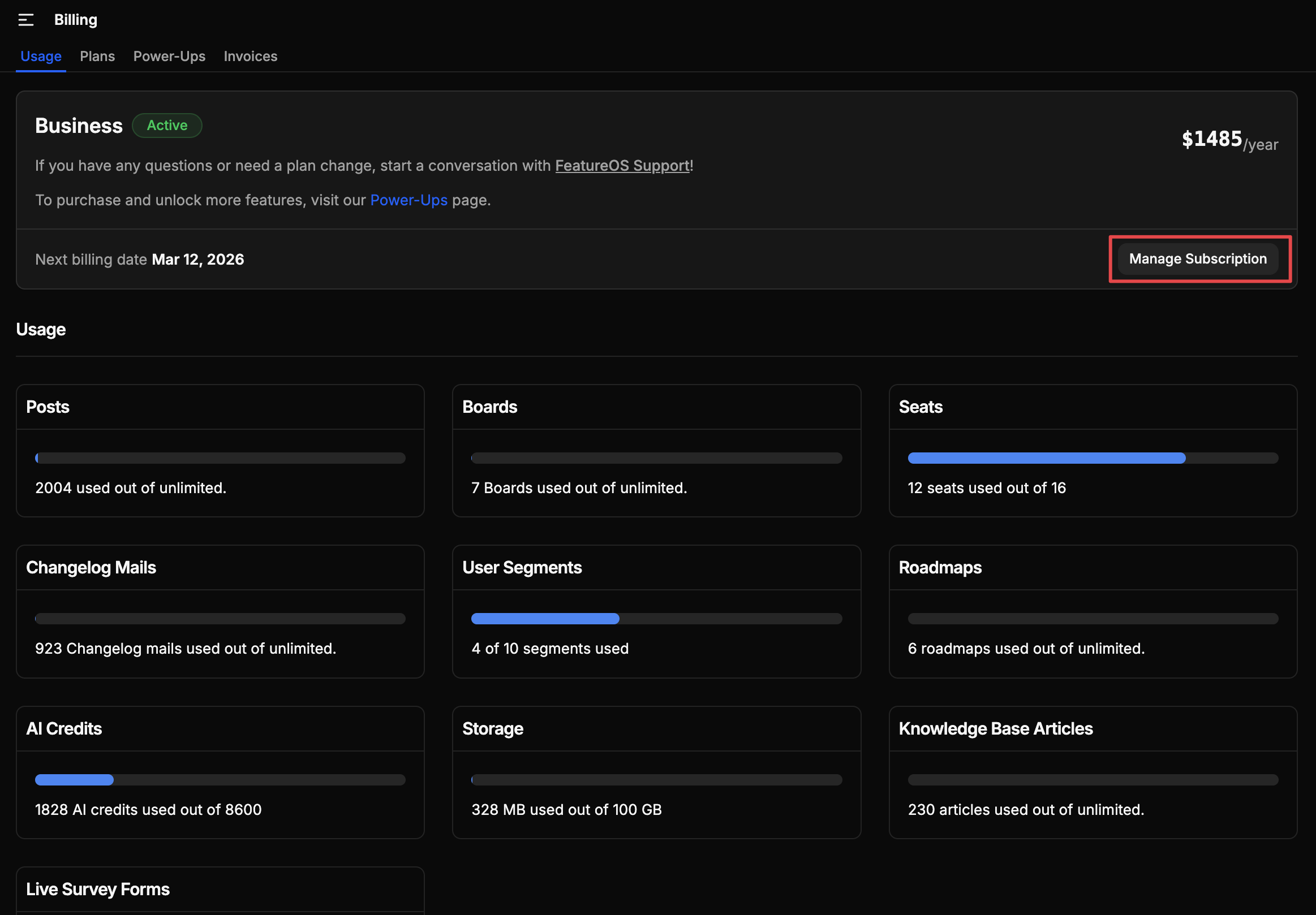
Choose Update Card Details
Enter your new payment information and save it
Your new card will be applied immediately and used for all future subscription charges.
What to Expect After Updating Your Card
Any changes you make are applied instantly and will reflect in your upcoming billing cycle. You can revisit the Billing section at any time to review your subscription status, check past invoices, or verify that your new payment method is active.
Need Help?
If you experience issues while updating your card or notice a past-due status on your subscription, feel free to reach out to our support team at [email protected]. We’ll help you get things resolved quickly so your account remains active without interruption.
Was this helpful?