

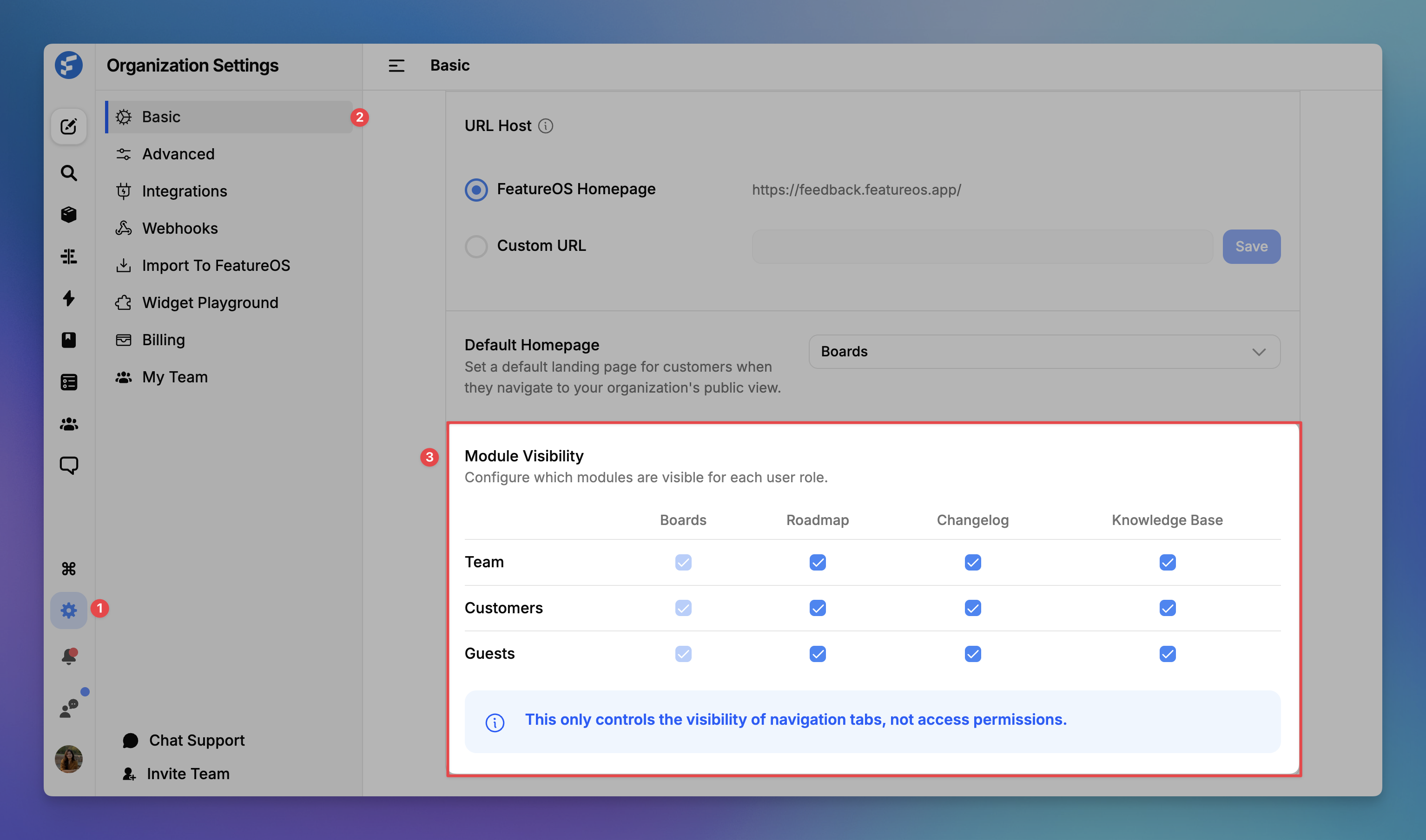
Module Visibility lets you control which modules of your FeatureOS portal, i.e., Feedback Board, Roadmap, Changelog and Knowledge Base, appear in the navigation for each type of user. You can choose to show or hide the Boards, Roadmap, Changelog, and Knowledge Base tabs independently for your Team members, Customers, and Guests(Potential Customers).
This is useful when you want to keep certain sections internal, simplify the experience for customers, or restrict what guest visitors see when they land on your portal.
Where to Find It?
You can set the module settings by the following way :
Dashboard → Organization Settings > Basic > Module Visibility
Scroll down on the Basic settings page until you reach the Module Visibility section. You will see a grid showing each module as a column and each user role as a row.
How It Works?
The Module Visibility grid has three user roles and four modules:
User Roles:
Team - your internal workspace members
Customers - logged-in users who have submitted feedback or been added to your portal, or basically someone who is currently your paying customer
Guests - anyone who visits your portal without logging in, this can be your potential customer
Modules:
Boards - where feature requests and bug reports live
Roadmap - your public-facing product roadmap
Changelog - your release notes and shipped updates
Knowledge Base - your help articles and documentation
Check or uncheck any cell in the grid to toggle whether that module's tab appears in the navigation for that role. Changes take effect immediately for users visiting your portal.
Example Use Cases
Convert Potential Customers faster : If you want guests to only see Feedback Boards and Roadmap, uncheck all other modules for the Guest role. They can browse open feature requests to see how actively your community shapes the product, then check the Roadmap to see what's coming next quarter. This gives first-time visitors a focused, single-purpose view and helps them understand what your company is planning for each quarter, helping them convert as a paying customer faster.
Keep the Knowledge Base internal : If your help articles are written for your team rather than customers, uncheck Knowledge Base for both Customers and Guests so only team members see it. Your Knowledge Base contains internal SOPs, team onboarding guides, or documentation written for your support team, hiding it from Customers and Guests ensures it stays internal. Your team gets the full picture; everyone else sees a clean portal without stumbling into docs that weren't written for them.
Manage Early Product Launch : If you're in early access or beta, you might not want your full roadmap visible to the public yet. Hide the Roadmap from both Guests and Customers while keeping it visible to your Team, so your internal team can work from the roadmap as normal. Once you're ready to go public with your plans, you can check box the roadmap and let your customers know about your upcoming plans.
Run a Support-Focused Portal for Enterprise Customers For enterprise teams where the primary use case is support and documentation, flip the visibility so that Customers see the Knowledge Base front and center alongside Boards, but the Roadmap and Changelog are hidden. This keeps enterprise users focused on getting unblocked quickly rather than tracking product updates, which you might be communicating to them through a dedicated CSM or newsletter anyway.
Need more help?
Contact our support at [email protected] or submit a request on our support board! 😃
Was this helpful?