

FeatureOS Knowledge Base lets you maintain two separate versions of any help article at the same time : a Published version that your users see, and a Draft version where you can work on updates privately. This means you can edit and refine an article without affecting the live content your users are reading.
Understanding the Two Content States
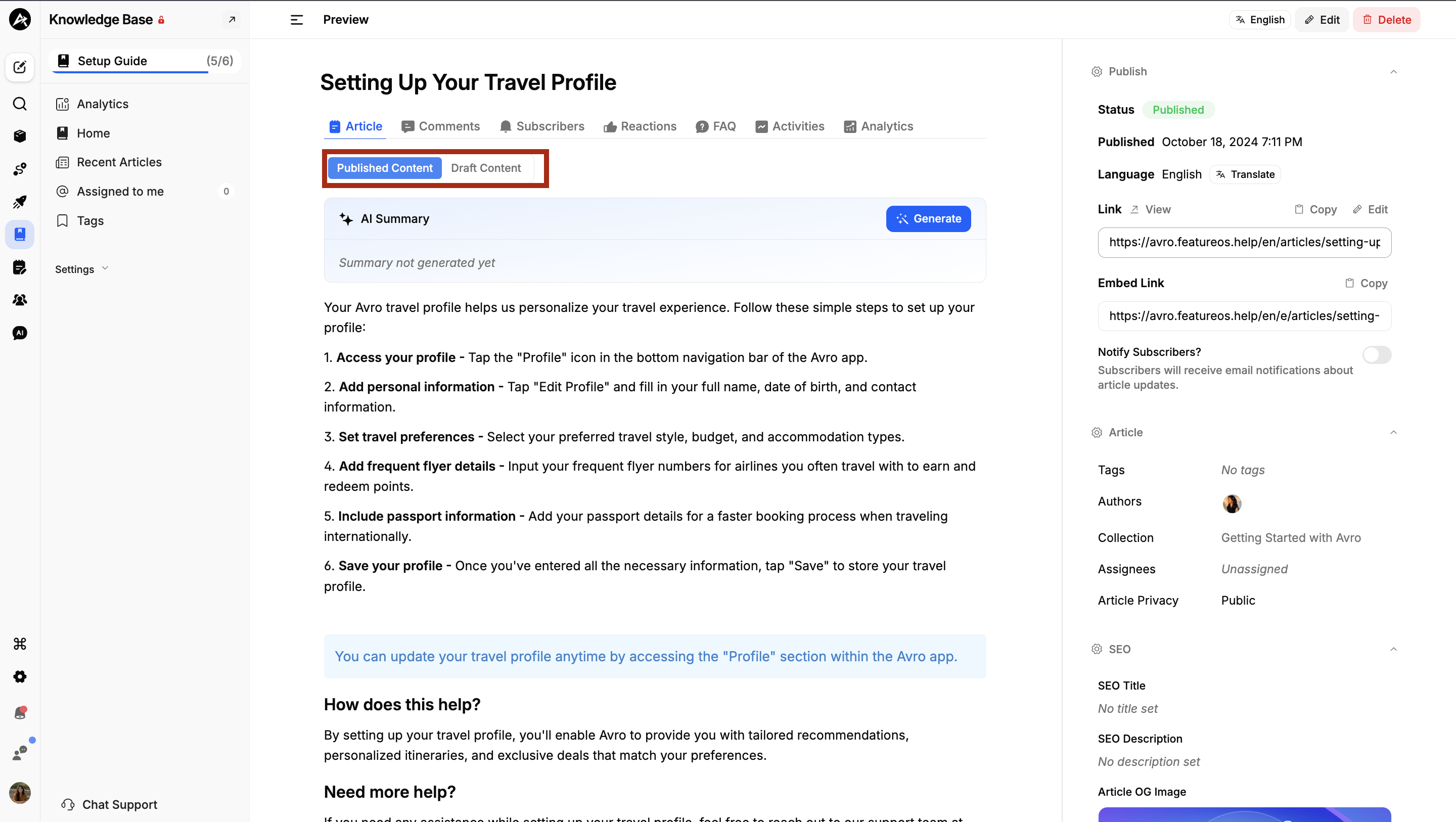
When you open any article in the Knowledge Base editor, you will notice two tabs at the top of the content area:
Published Content - The live version of the article that is currently visible to your users. This content was made public the last time you clicked Publish.
Draft Content - A private working version of the article. Any edits you make are saved here and remain invisible to users until you choose to publish.
You can switch between the two tabs at any time to compare your in-progress draft against what is currently live.
How It Works?
When you open an article and start editing, your changes are automatically saved to the Draft Content tab. The Published Content tab remains untouched, so your users continue to see the last published version while you work.
This is particularly useful when:
You need to make significant rewrites that will take multiple sessions to complete
You want a colleague to review the draft before it goes live
You are updating an article to reflect an upcoming feature that hasn't launched yet
Publishing Your Draft
Once your draft is ready:
Open the article in the editor.
Review your changes in the Draft Content tab.
When satisfied, click Publish Now in the right-hand sidebar.
Your draft becomes the new Published Content and is immediately visible to users.
Discarding a Draft
If you want to abandon your draft changes and revert to the published version, simply discard the draft from the editor. The Published Content will remain live and unchanged.
The Article Status Indicator
The right-hand sidebar shows the current status of your article:
Published : The article is live and visible to users. A published date and time is shown (e.g., "Published March 6, 2026 4:08 PM").
Draft : The article has never been published, or has unpublished changes pending.
If an article has both a published version and a draft in progress, the status will show Published (reflecting the live content) while the Draft Content tab holds your pending edits.
Notifying Subscribers on Publish
When you publish an updated article, you have the option to notify subscribers. The Notify Subscribers toggle in the right-hand sidebar controls this:
On : Subscribers will receive an email notification that the article has been updated.
Off : The article updates silently, with no notification sent.
Turn this off when making minor corrections like typo fixes. Turn it on for significant updates that users should be aware of.
Tips for Working with Drafts
Draft changes are auto-saved : you don't need to manually save while editing. You can leave and return to the article and your draft will be preserved.
Only one draft at a time : each article has a single draft version. New edits overwrite the previous unsaved draft.
Drafts are not visible to users : even if an article is public, the Draft Content tab is only accessible to your internal team in the editor view.
Use the Preview option to see how your draft will look to users before publishing.
Frequently Asked Questions
Can I have multiple drafts of the same article? No. Each article supports one active draft at a time. Your latest edits are always saved to that single draft version.
Will my draft be lost if I close the browser? No. Drafts are automatically saved to FeatureOS, so your work is preserved even if you close the tab or browser.
Can teammates see my draft? Yes. Any team member with access to the Knowledge Base editor can view and edit the draft content of an article.
What happens to the draft after I publish? Once you publish, the draft content becomes the new published version. The draft tab will then reflect the same content as the published tab until you start making new edits.
Need more help?
Reach out to our support at [email protected] or submit a request on our support board! 😃
Was this helpful?