

Migrating your workflow shouldn't be confusing and time-consuming. Whether you’re moving from spreadsheets or another feedback tool, FeatureOS makes it simple to bring your posts and people with you.
To start with the process of importing your data from you current workspace, head to :
Dashboard → Organization Settings → Import to FeatureOS → New Import.
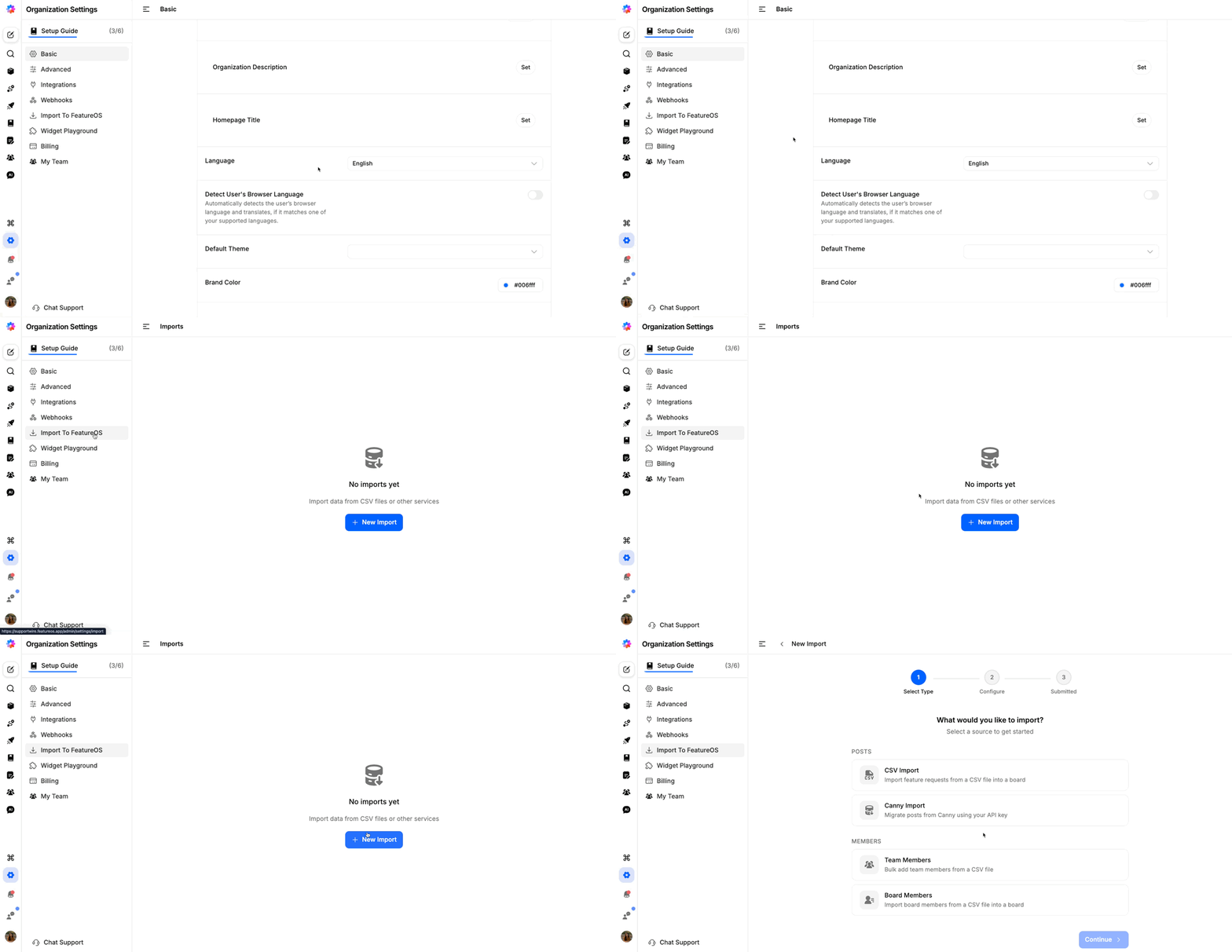
To import your feedback posts :
1. Import your Feedback posts using CSV
Goal: Quickly migrate existing feature requests, bugs, or feedback from another workspace directly into a specific FeatureOS board.
How to Import :
Head to Dashboard → Organization Settings → Import to FeatureOS → New Import
Select Source: Choose CSV Import under the "Posts" category.
Upload & Configure: Upload your
.csvfile. You will be prompted to map your spreadsheet columns (like Title, Description, and Status) to Featureos fields.Target Board: Select which board these posts should live in.
Review: Double-check your data mapping before hitting Submit.
2. Migration from Canny
Goal: Seamlessly move your entire community and feedback history from Canny to Featureos using API integration.
How to Import
Connect: Select Canny Import from the menu.
API Key: Paste your Canny API key into the configuration field to establish a secure link.
Sync Data: Featureos will fetch your Canny posts and comments.
Finalize: Confirm the migration to bring over your historical data without losing any context.
3. Bulk Add Team Members
Goal: Save time by inviting your entire staff or organization to Featureos all at once using a CSV file.
How to Import
Select Type: Choose Team Members under the "Members" category.
Prepare File: Ensure your CSV contains a list of email addresses and, optionally, names.
Assign Roles: Use the configuration step to set default roles (e.g., Admin or Moderator) for the new invites.
Invite: Submit the import to send automated email invitations to your entire team.
4. Board Members Import
Goal: Populate a specific board with stakeholders or private contributors by importing them from a list.
How to Import
Select Type: Choose Board Members from the list.
Target Board: Select the specific board you want to populate.
Upload List: Upload a CSV file containing the users you wish to add to this specific board.
Access Control: This method is perfect for quickly granting access to private boards for specific groups of users.
Was this helpful?