

Connect FeatureOS to monday.com to turn customer feedback into work your team can plan and ship. Posts can become monday.com items automatically, statuses stay in sync in both directions, and your team can see what customers asked for without leaving monday.com.
What you can do
Push posts to monday.com automatically. Create a monday.com item when a post matches rules you set.
Sync statuses both ways. Update the monday.com item when a post's status changes, and update the post when the item's status changes.
Create or link items from a post. Send a single post to monday.com, or link it to an item that already exists.
See feedback inside monday.com. Use the FeatureOS Item View to see linked posts, create new posts, or link existing ones from any monday.com item.
Before you begin
You need admin access to your FeatureOS organization.
Your FeatureOS plan must include the monday.com integration.
The monday.com account you connect must have access to the boards you want to use.
Install the FeatureOS app in your monday.com workspace
Install the FeatureOS app once per monday.com account. A monday.com admin, or a member allowed to install apps, can do this.
Open the FeatureOS app install link.
Sign in to monday.com if asked, and choose the workspace to install it in.
Review the permissions and click Install.
Then connect monday.com from FeatureOS, as below. That's what lets FeatureOS create items, sync statuses and show feedback inside monday.com.
Connect monday.com
In FeatureOS, go to Dashboard → Organization Settings → Integrations.
Find monday.com and click Connect.
Sign in to monday.com and approve the permissions FeatureOS asks for.
Push posts to monday.com automatically
A push rule tells FeatureOS which posts to send to monday.com, and where to put them. You can create more than one rule. For example, bugs can go to your engineering board and feature requests to your product board.
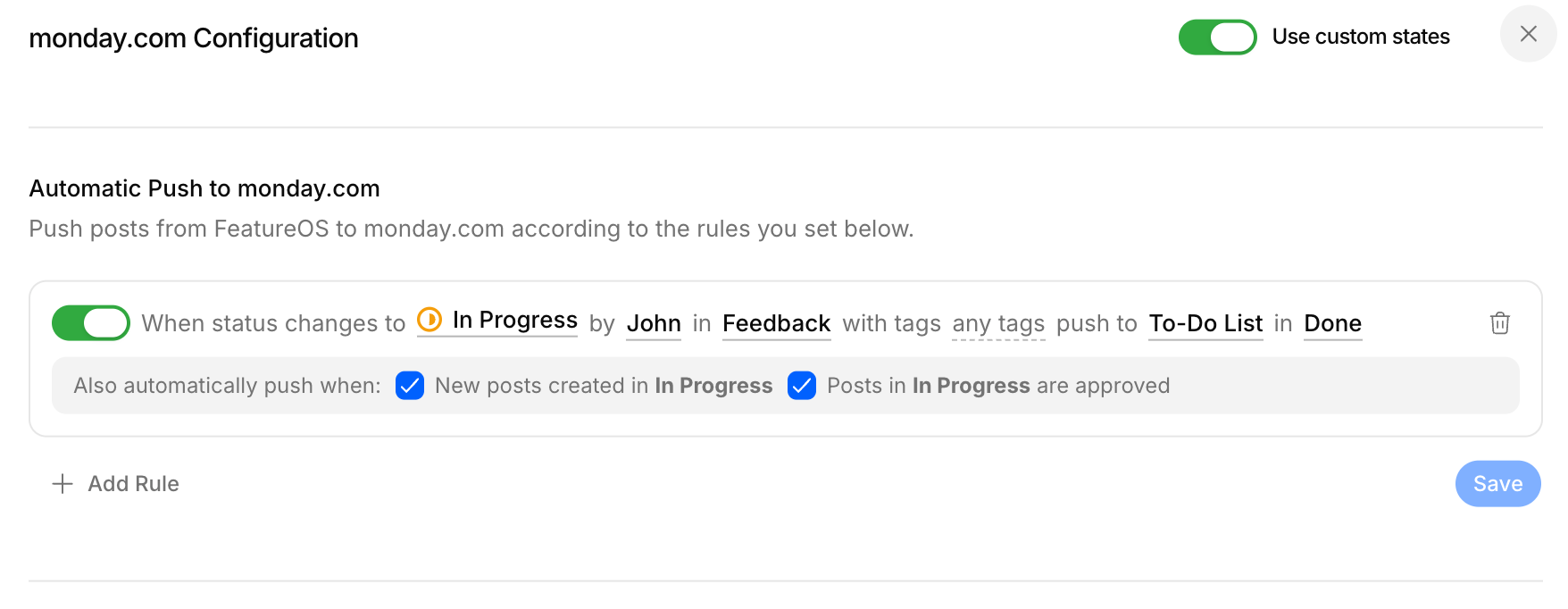
For each push rule, set:
monday.com board: the board where new items are created. Only boards with at least one status column are listed.
Group (optional): the group on that board where items go.
FeatureOS boards: only posts on these FeatureOS boards are pushed.
Status: only posts in this status are pushed.
Push on creation: push a post as soon as it's created, if it matches the rule.
Push on approval: push a post when it's approved, if it matches the rule.
Tags (optional): only push posts that have at least one of these tags.
Performed by (optional): only push when one of these team members makes the change.
When FeatureOS pushes a post, it:
Creates an item with the post's title on the board you chose.
Adds an update to the item with a link back to the FeatureOS post.
Links the item to the post so status sync can start.
Sync statuses
Status sync rules keep FeatureOS posts and monday.com items in step. Each rule works in one direction.
As soon as monday.com is connected, FeatureOS lists the status labels from every board your account can access, so you can set up your first rule right away.
Status columns
In monday.com, each board has its own status columns with their own labels. A board can have more than one status column (for example, Status and Priority). In a sync rule, pick the board, then the status column, then the status. The rule applies only to that column. If the board has just one status column, FeatureOS picks it for you.
FeatureOS → monday.com
When a post moves to a status in FeatureOS, FeatureOS updates the status column of every monday.com item linked to it.
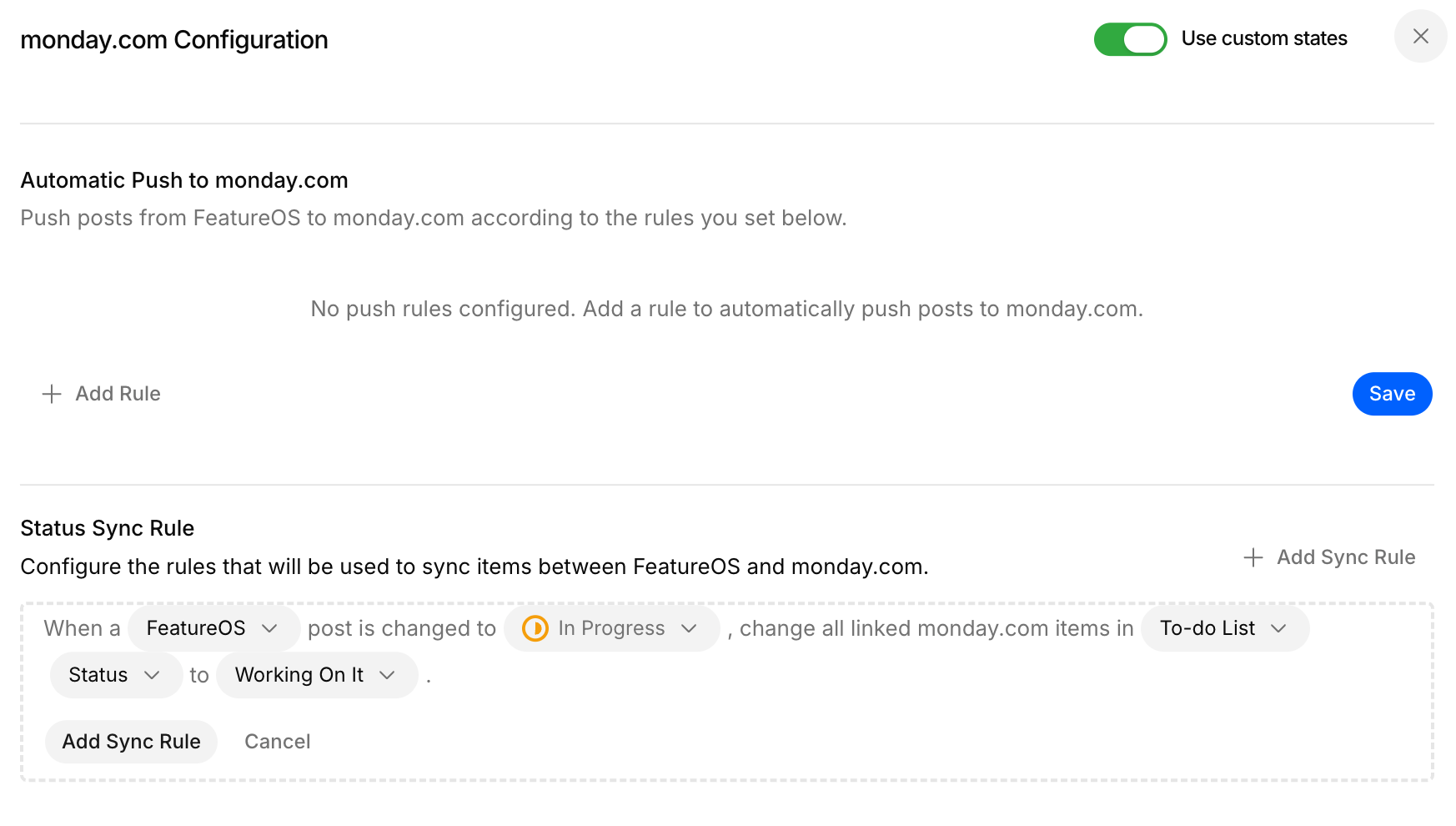
When the post status is: the FeatureOS status that triggers the rule.
Set the item status to: the monday.com status label to apply, from the status column you picked.
Board : status labels differ from board to board in monday.com, so you can add a rule for a specific board. For items on that board, the board-specific rule overrides a general rule.
monday.com → FeatureOS
When an item's status changes in monday.com, FeatureOS updates the linked post.
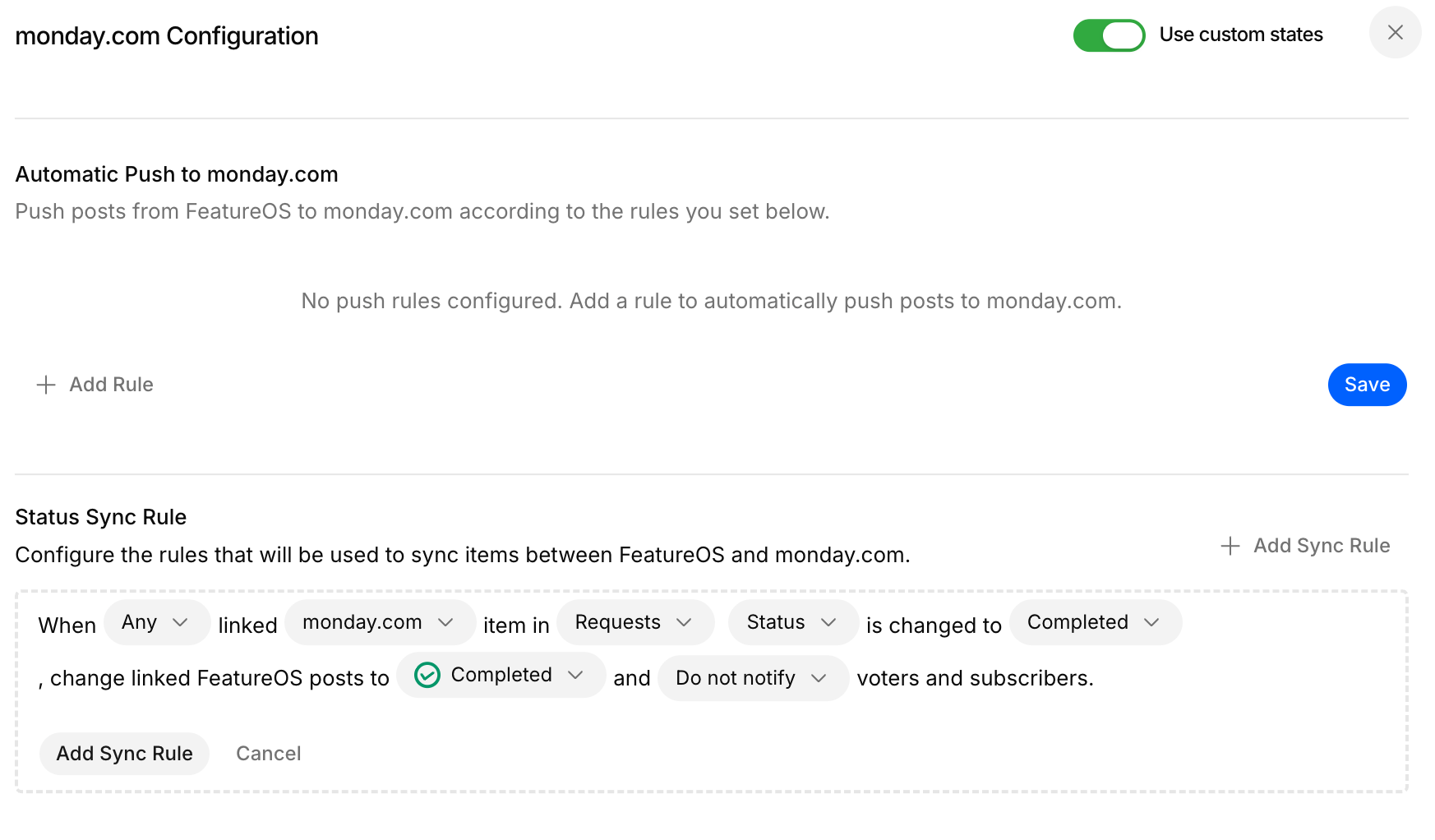
Board: the monday.com board to watch. This is required.
Status column: the column to watch. Changes in other status columns on the board don't trigger this rule.
When the item status is: the monday.com status that triggers the rule.
Set the post status to: the FeatureOS status to apply.
When: choose Any to update the post as soon as one linked item reaches this status, or All to update it only when every linked item has reached this status in the same column.
Notify customers: choose whether voters and subscribers get the usual status-change notification.
Create or link items from a post
You can also connect a post to monday.com yourself, from the post's page in FeatureOS:
Create a new item: choose a board and a group, then set the item's title. You can also assign a person and choose a starting status from any of the board's status columns.
Link an existing item: search your monday.com items and link the one that tracks this work.
See linked items: each linked item shows its current monday.com status and title. Items linked to posts merged into this one appear here too.
Unlink an item: remove the link. The monday.com item isn't deleted.
Use FeatureOS inside monday.com
Once the FeatureOS app is installed and monday.com is connected, open any item and add the FeatureOS view. On any item you can:
See linked posts: each shows its title, status, votes, submitter and assignee, with a link to the full post.
Push to FeatureOS: choose a board, then add a title, description, submitter email, and any custom fields that board uses. The new post is linked to the item right away.
Link an existing post: search FeatureOS posts by title or description, filter by board if you want, and link the right one.
What you can do depends on who you are in FeatureOS. FeatureOS matches your monday.com account to a FeatureOS team member by email:
FeatureOS admins, members and CSMs can see linked posts, push new posts and link existing ones. Posts you create or link are credited to you, and search shows the posts your FeatureOS role can see.
Everyone else, including collaborators and monday.com users without a FeatureOS team account, can see linked posts but can't push, link or search.
Disconnect monday.com
Open the monday.com integration in your FeatureOS Integrations settings and click Disconnect. FeatureOS stops creating items and syncing statuses. Your existing monday.com items aren't deleted.
Troubleshooting
A post wasn't pushed to monday.com.
Check that a push rule is turned on and that the post matches all of its conditions: the FeatureOS board, the status, the tags and the team member who made the change. Also check that Push on creation or Push on approval is on for the event that happened. A post that was already pushed won't be pushed again.
A monday.com status change didn't update the post.
Make sure there's a monday.com → FeatureOS rule for that board, status column and status. If the board has more than one status column, check that you changed the column the rule watches. If the rule uses All, every linked item has to reach that status first.
The item's status didn't change after I updated the post.
Check that the FeatureOS → monday.com rule points to a status label that exists on the item's board. Labels are set per board and per column, so add a board-specific rule if the board uses different labels.
I can see linked posts but can't push or link from monday.com.
You need a FeatureOS team account (admin, member or CSM) in this organization with the same email as your monday.com account. Ask a FeatureOS admin to invite you, or to check the email on your account.
A monday.com board is missing from the board list.
Only boards with at least one status column are listed, because status sync needs one. Add a status column to the board in monday.com, then open the list again.
Status sync stopped working for a board I set up earlier.
Open the monday.com integration settings and save your sync rules again. FeatureOS then refreshes its connection to that board.
Need more help?
Reach out to our support at [email protected] or submit a request on our support board! 😃
Was this helpful?