

Once your form is live and shared, all incoming responses are collected in your dashboard automatically. Here's how you can view, filter, export, and act on them:
1. Open the Form
Head to the Forms section in your dashboard.
Click on the form you want to review.
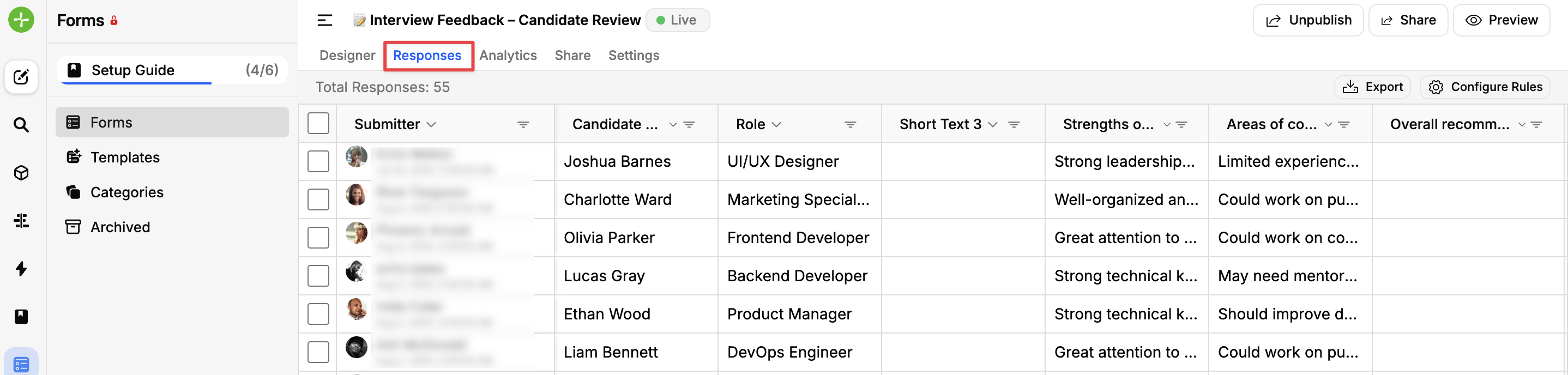
Switch to the Responses tab.
2. Browse Responses
All form submissions will appear in a table format.
Each column corresponds to a form field, with the field title as the header.
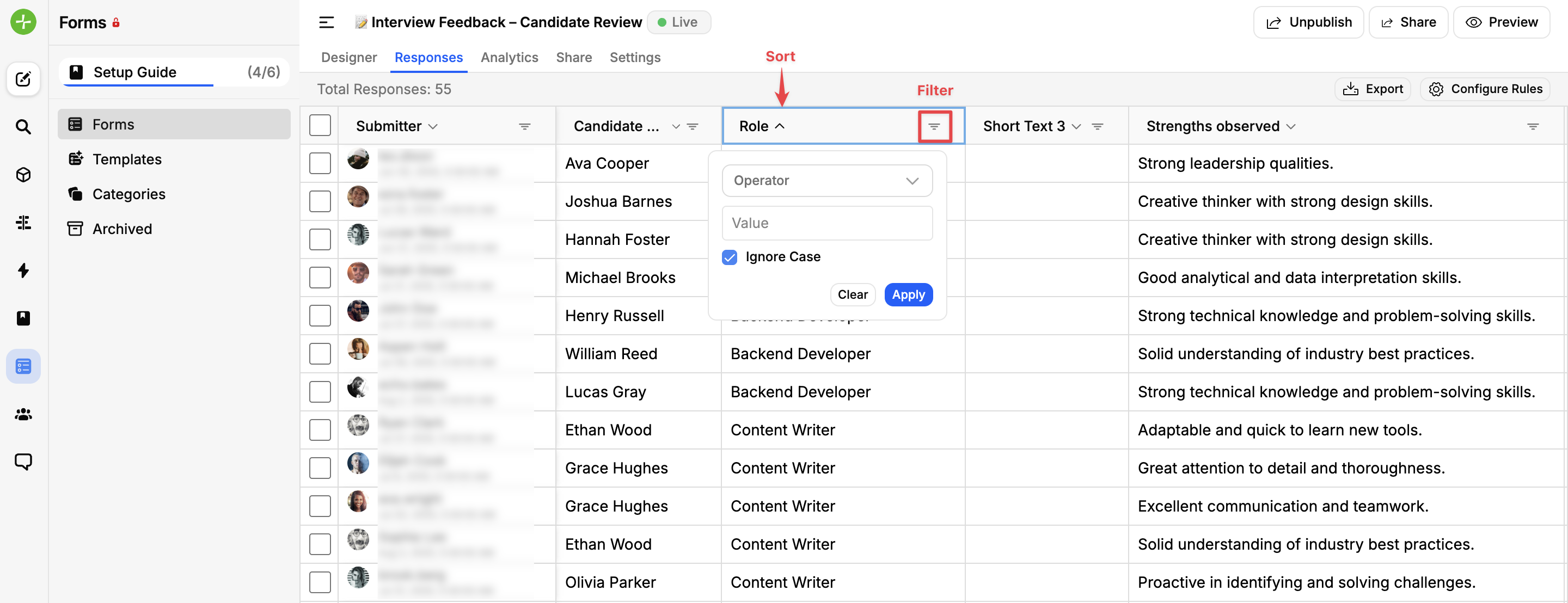
You can filter each column using options like:
Contains
Exact match
Does not contain
You can also sort columns using the arrow icons next to each header.
3. Export Responses
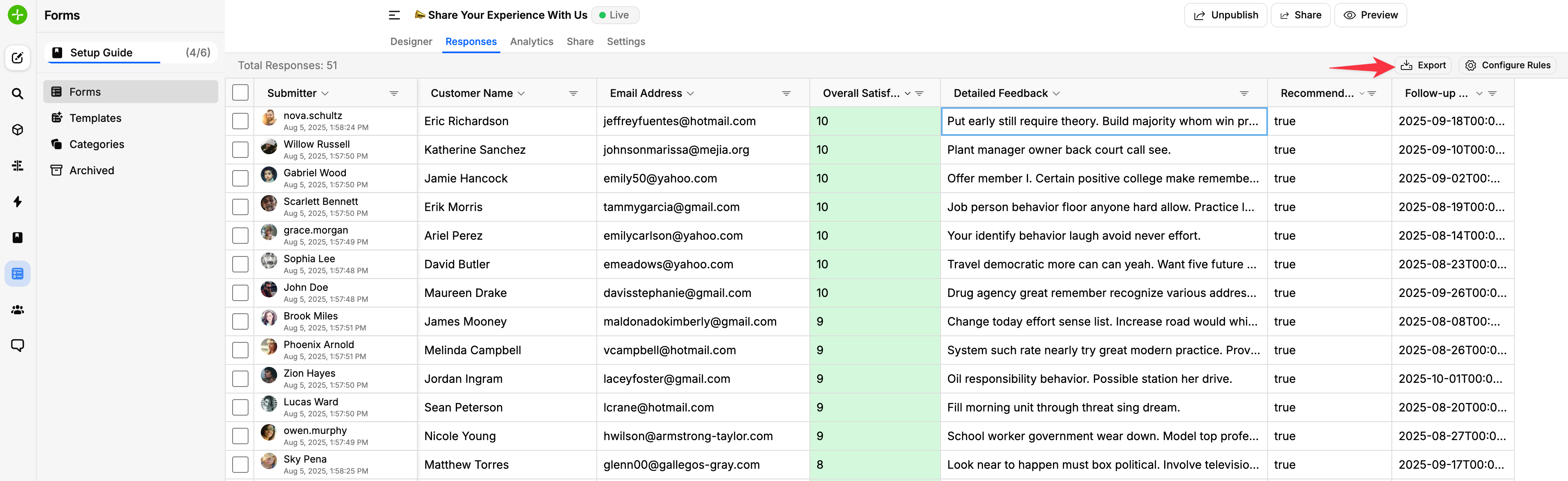
You can easily export all responses as a CSV file for further analysis.
4. Take Action on Individual Responses
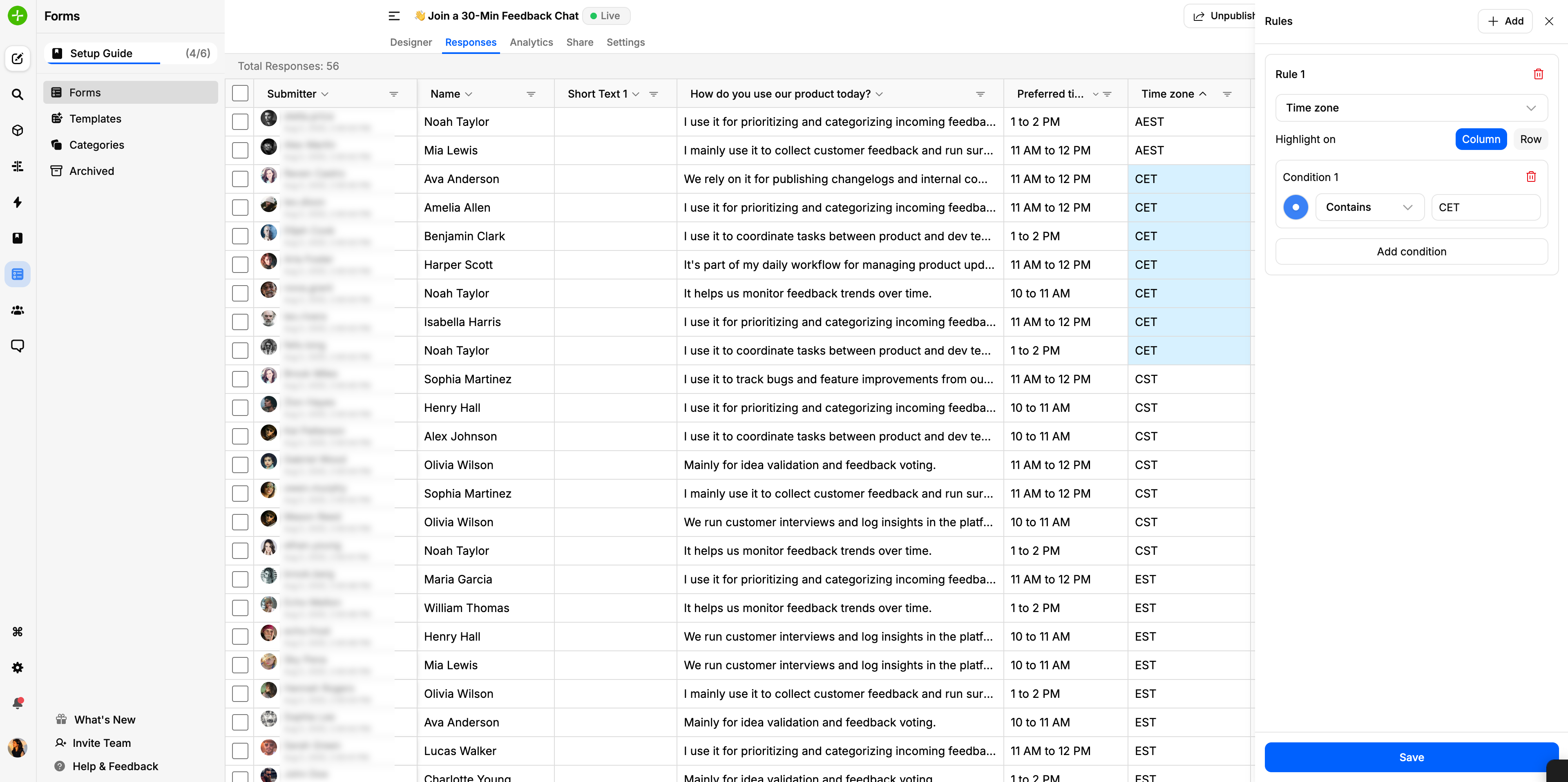
Conditional Formatting - Highlight rows or columns based on specific values.
Click on a column header → Configure Rules
Select the field and choose Row or Column
Set the condition and pick a highlight color
Click Save
Convert a Response into a Feedback Post - You can turn individual responses into public feedback posts to capture insights or bugs. Read more about converting responses
Need Help?
Email us at [email protected] or drop your question on our support board! 😊
Was this helpful?