

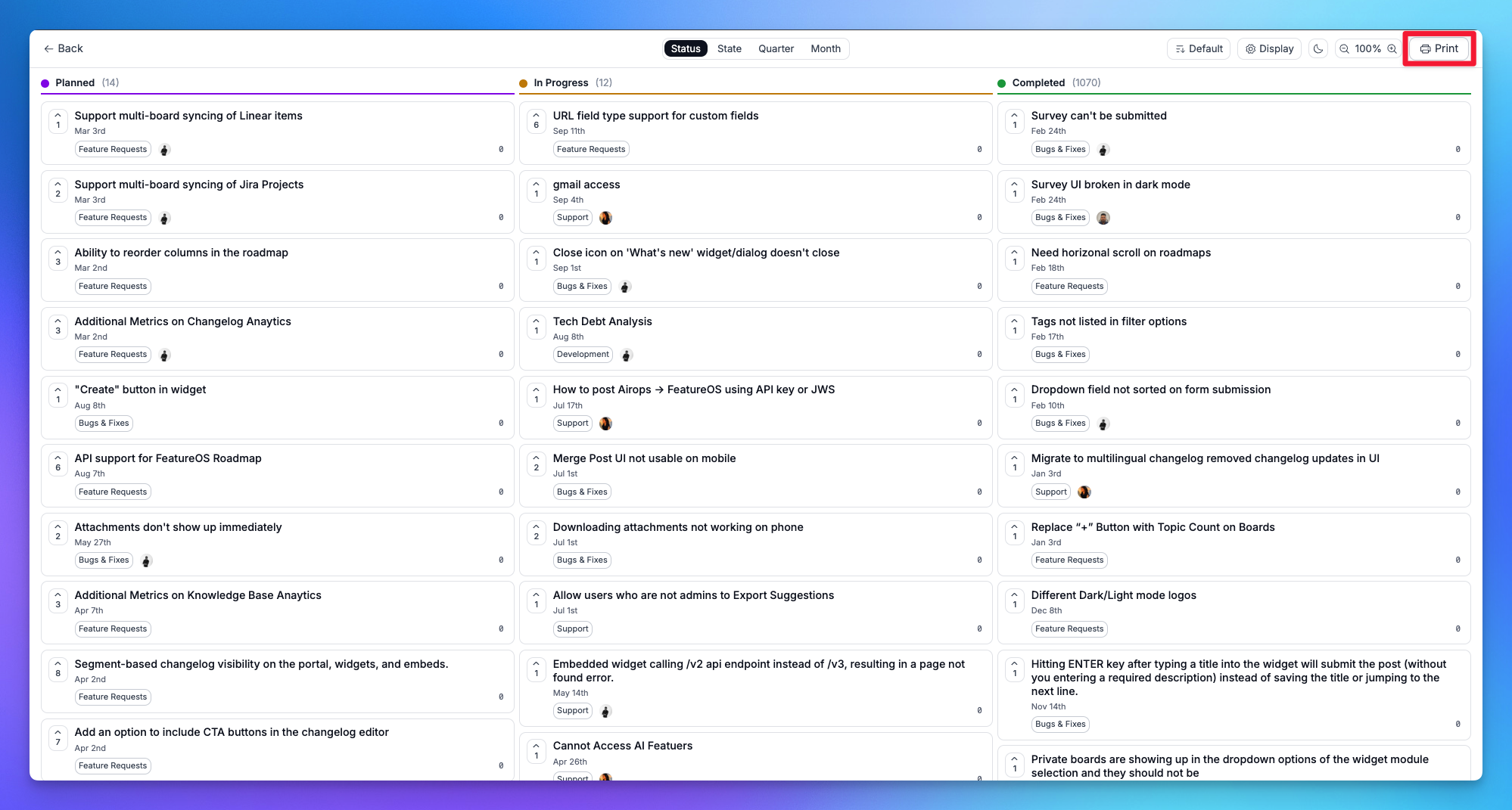
The Roadmap Print feature lets you export a fully formatted, print-ready view of your roadmap directly from the interface. Before printing, you can customize grouping, sorting, display fields, zoom level, and color theme to get exactly the output you need.
How to Print Your Roadmap
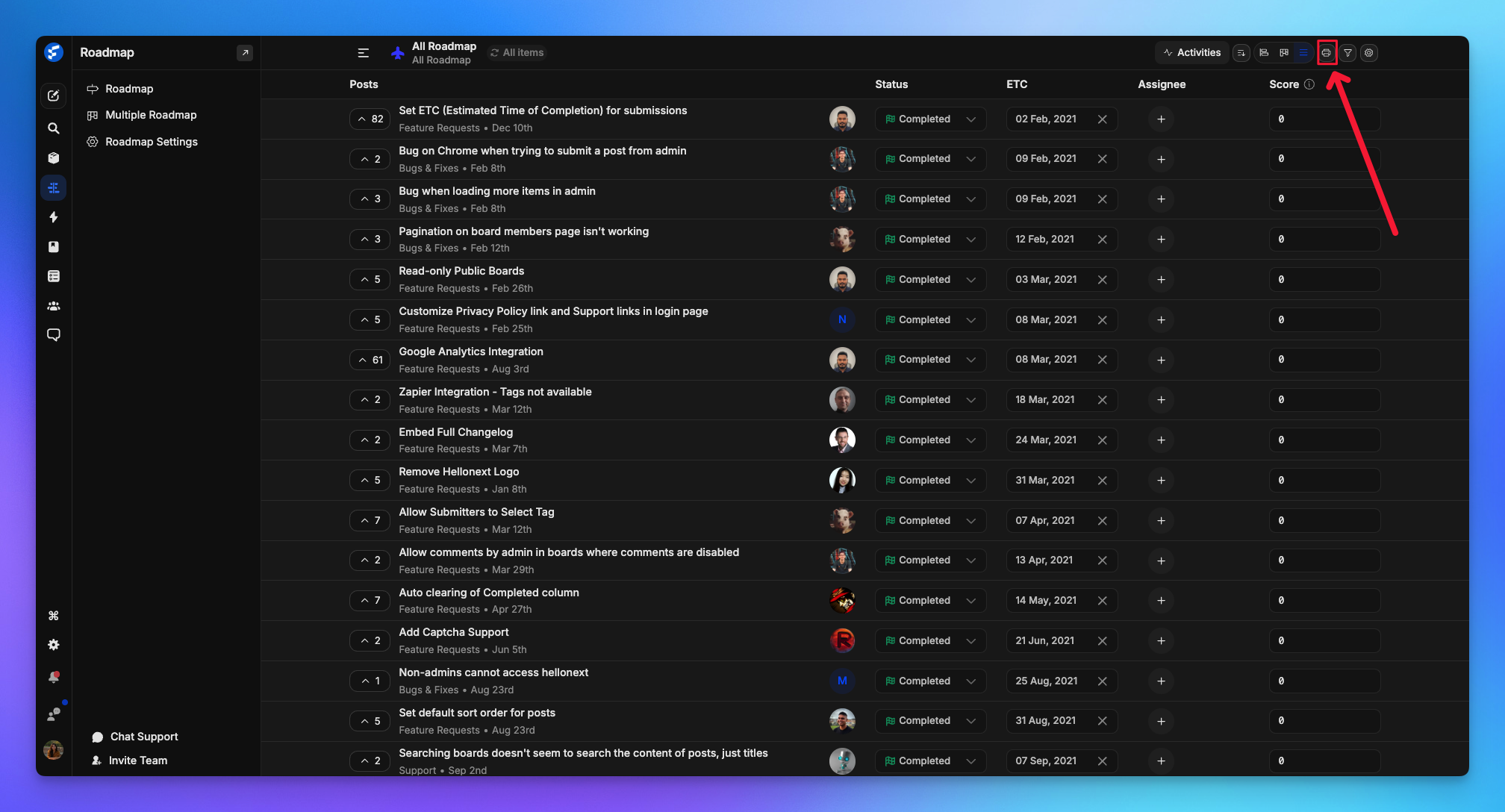
This feature is currently available for Multiple Roadmaps. To access it:
Go to your Dashboard
Navigate to Roadmap → Multiple Roadmap
Select the roadmap you want to print
Click the Print button in the upper-right corner of the toolbar (as shown above)
The browser's print dialog will open, where you can choose your printer, save as PDF, set paper size, orientation, and preview before printing.
Lane Grouping
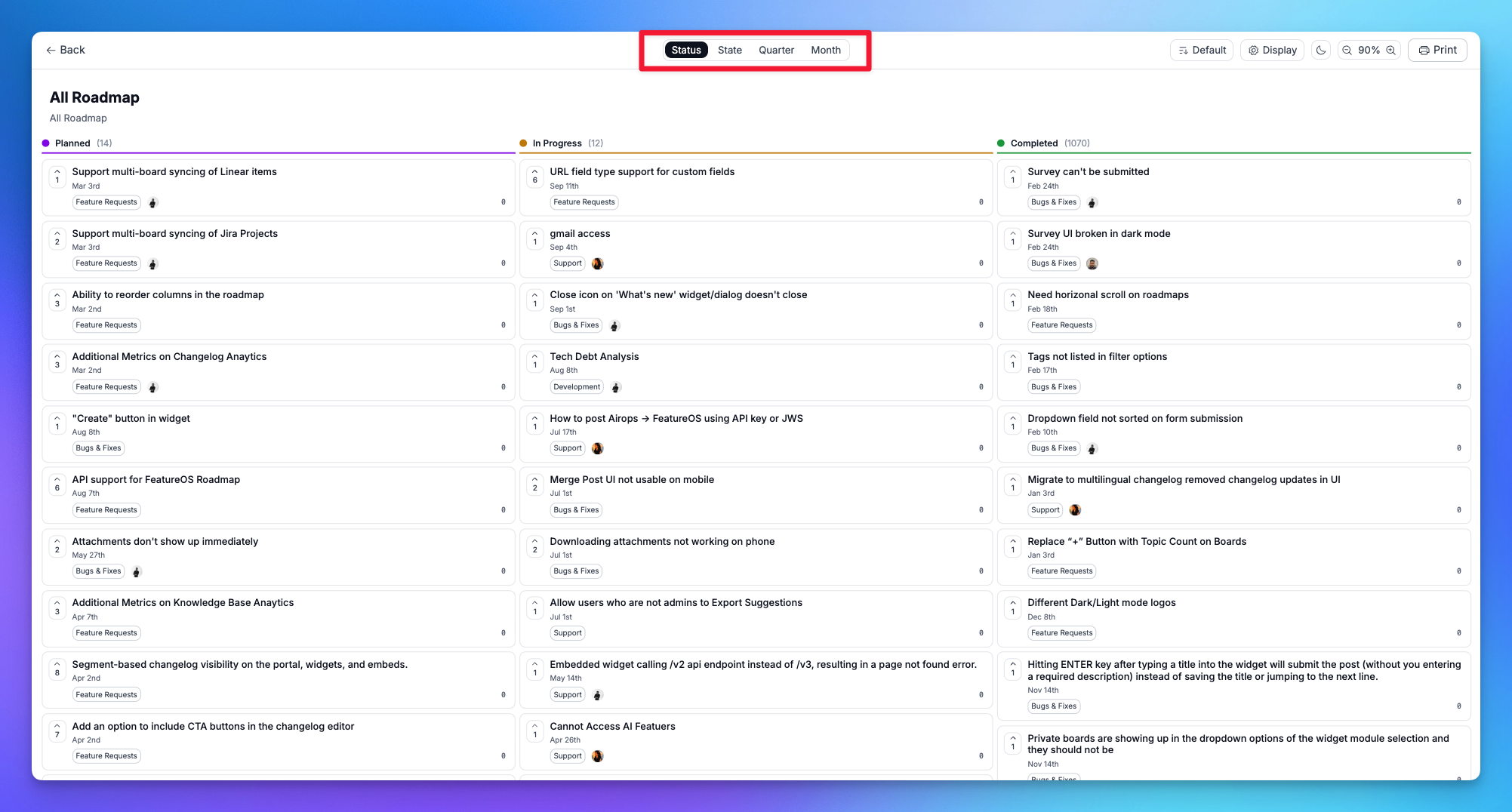
Control how items are organized into columns by selecting a grouping mode from the tab bar at the top of the page.
Status — Groups items into Planned, In Progress, and Completed lanes.
State — Groups items by their workflow state as defined in your project settings.
Quarter — Organizes items by the quarter they are scheduled for, useful for quarterly planning reviews.
Month — Breaks down the roadmap by month for a more granular timeline view.
Lane Grouping
Customize your layout by switching lane groupings. Choose between Status, State, Quarter, or Month to visualize your roadmap exactly how you need it.
Sorting
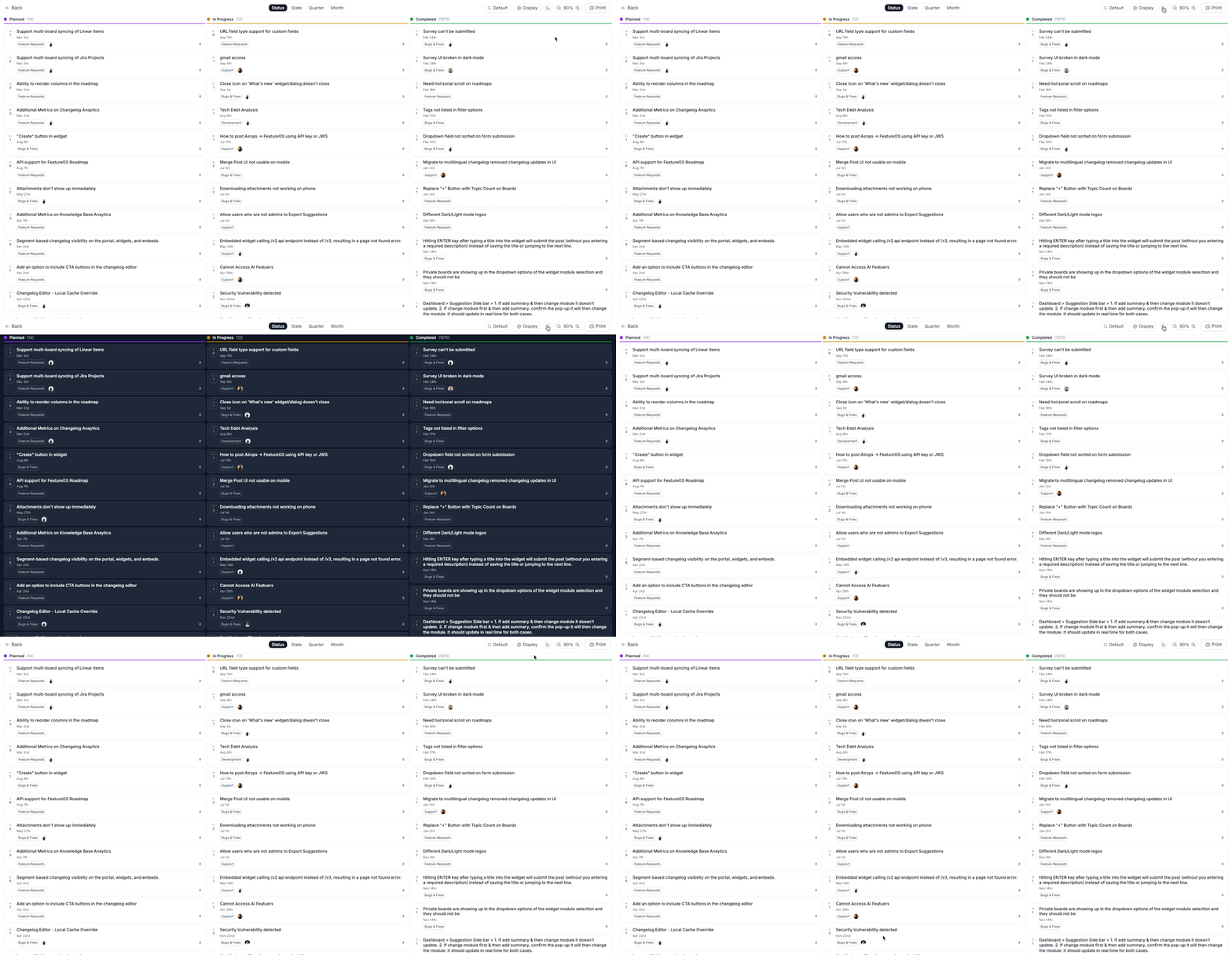
Use the sort dropdown (labeled Default) to control the order items appear within each lane. Available options are Votes( in both ascending and descending order), Newest, Oldest, ETC date, Score (in both ascending and descending order). Sorting applies across all lanes simultaneously.
Display Options
Click Display to open the display panel and customize what appears on each card and which lanes are visible.
Density controls how compact the cards appear, choose from Compact, Normal, or Expanded.
Card Fields lets you toggle individual fields on each card: Votes, Dates, Board, Assignee, Score, and Highlight Overdue.
Lanes lets you show or hide specific lanes Planned, In Progress, and Completed. Hidden lanes are excluded from the printed output as well.
Dark / Light Theme
Toggle between dark and light mode using the theme icon in the toolbar. Light mode is generally recommended for printing on paper, while dark mode works well for digital presentations.
Zoom
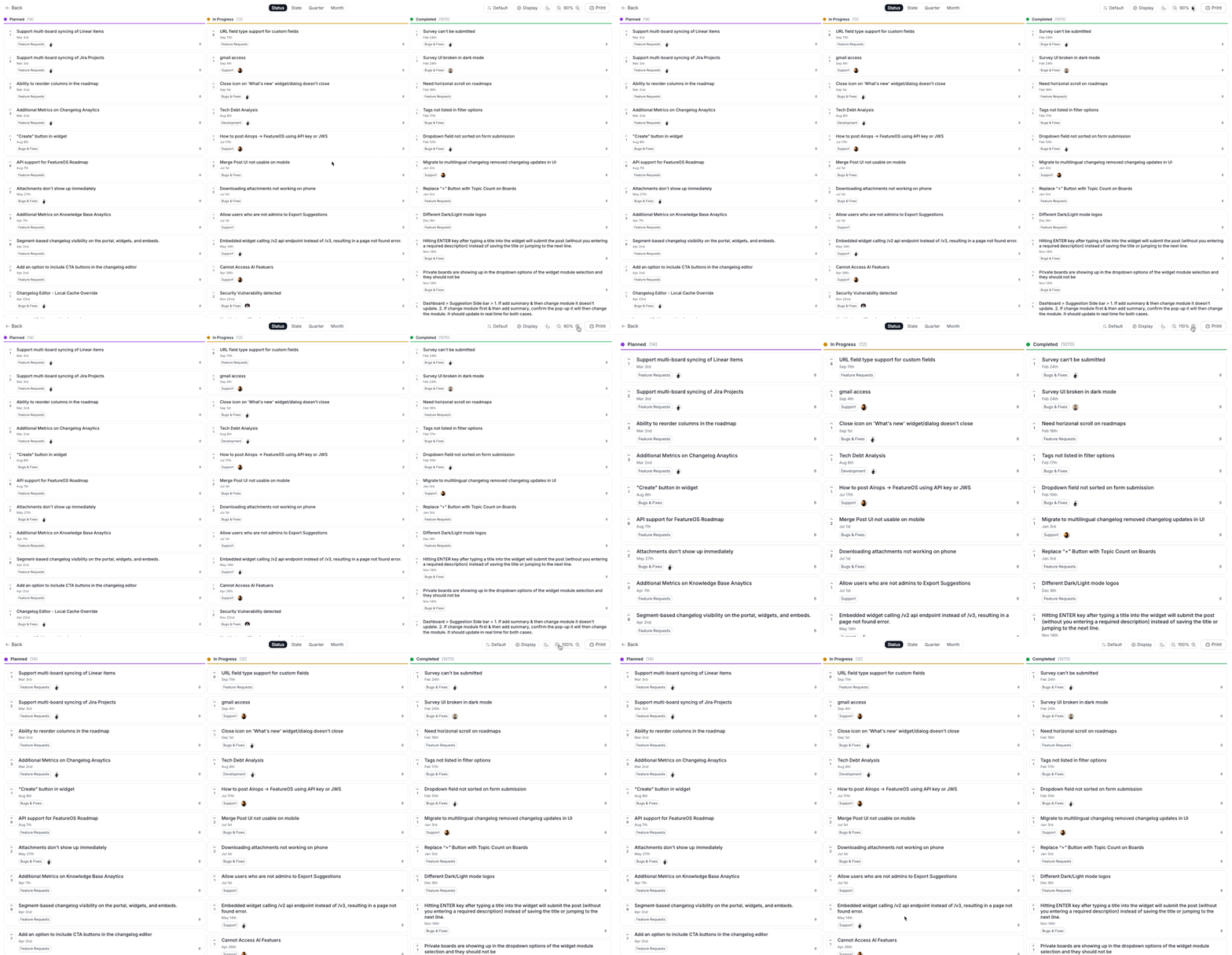
Use the zoom controls in the toolbar to scale the roadmap before printing. Reducing the zoom level helps fit a larger roadmap onto fewer pages. Your browser's print dialog also offers a "Fit to page" option for additional control.
Printing
Once your view is configured, click the Print button in the top-right corner to open your browser's print dialog. From there you can select a printer or save as PDF, set paper size and orientation, and preview the output before printing.
For best results, use Landscape orientation with Fit to page scaling. If your roadmap has many lanes, consider hiding the Completed lane to reduce the width.
Use Cases
Stakeholder Meetings - Print your roadmap before a quarterly review or leadership sync to give attendees a tangible reference. Use Status or Quarter grouping so priorities and timelines are immediately clear.
Sprint & Planning Sessions - Share a printed snapshot of the In Progress and Planned lanes with your team at the start of a sprint to align on what's being worked on and what's coming next.
Investor or Board Updates - Export a clean, high-level view of your roadmap as a PDF to include in board decks or investor update emails without needing to share direct access to your workspace.
Client Presentations - Show customers or prospects a curated view of upcoming features. Hide internal lanes or fields beforehand using the Display options to keep the output relevant and polished.
Async Documentation - Save a PDF snapshot of the roadmap at the end of each month or quarter as a record of what was planned vs. completed, useful for retrospectives and audits.
Need more help?
Contact our support at [email protected] or submit a request on our support board! 😃
Was this helpful?