

By default, boards are public, any visitor can browse all posts submitted by other users. While this openness encourages community engagement and vote aggregation, it isn't always appropriate for every use case.
The Support Board setting changes this behaviour.
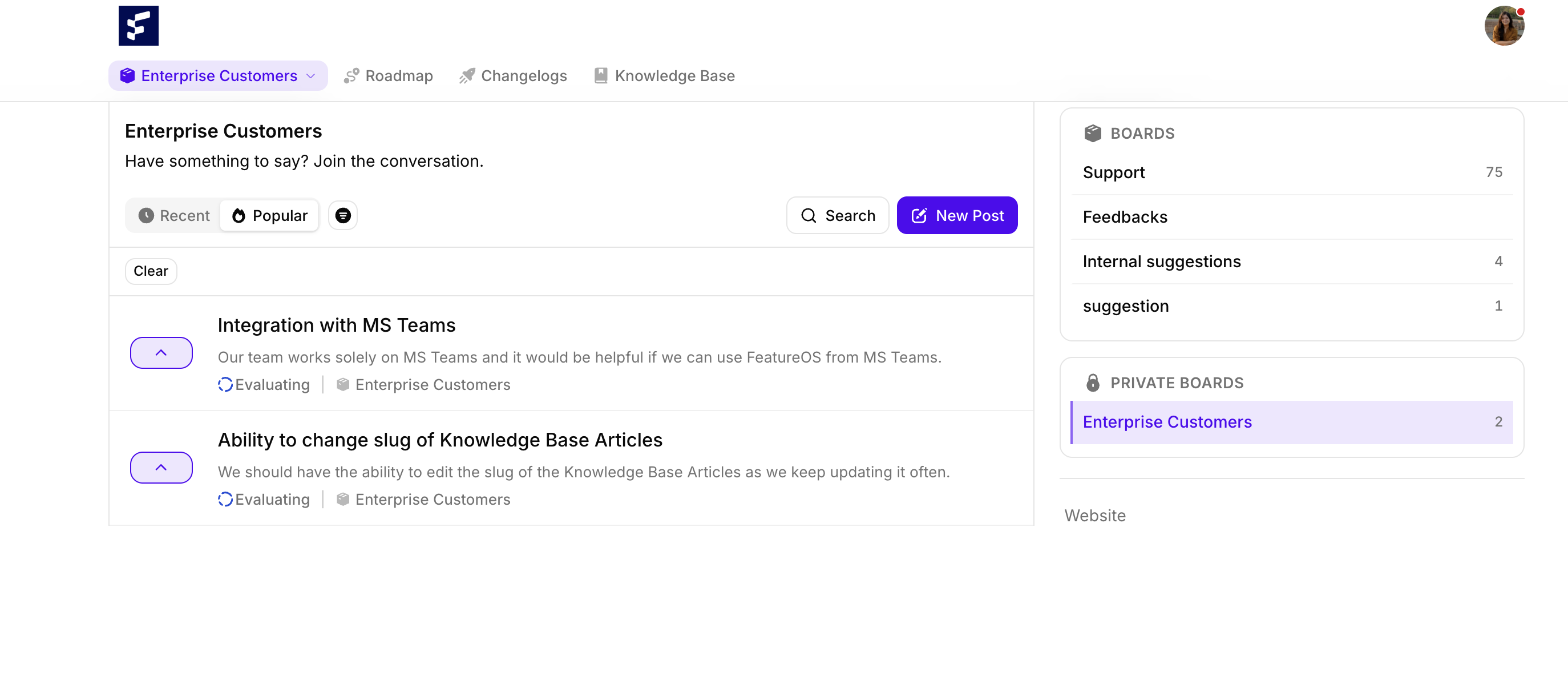
When enabled on a board, each customer is shown only the posts they themselves have submitted.
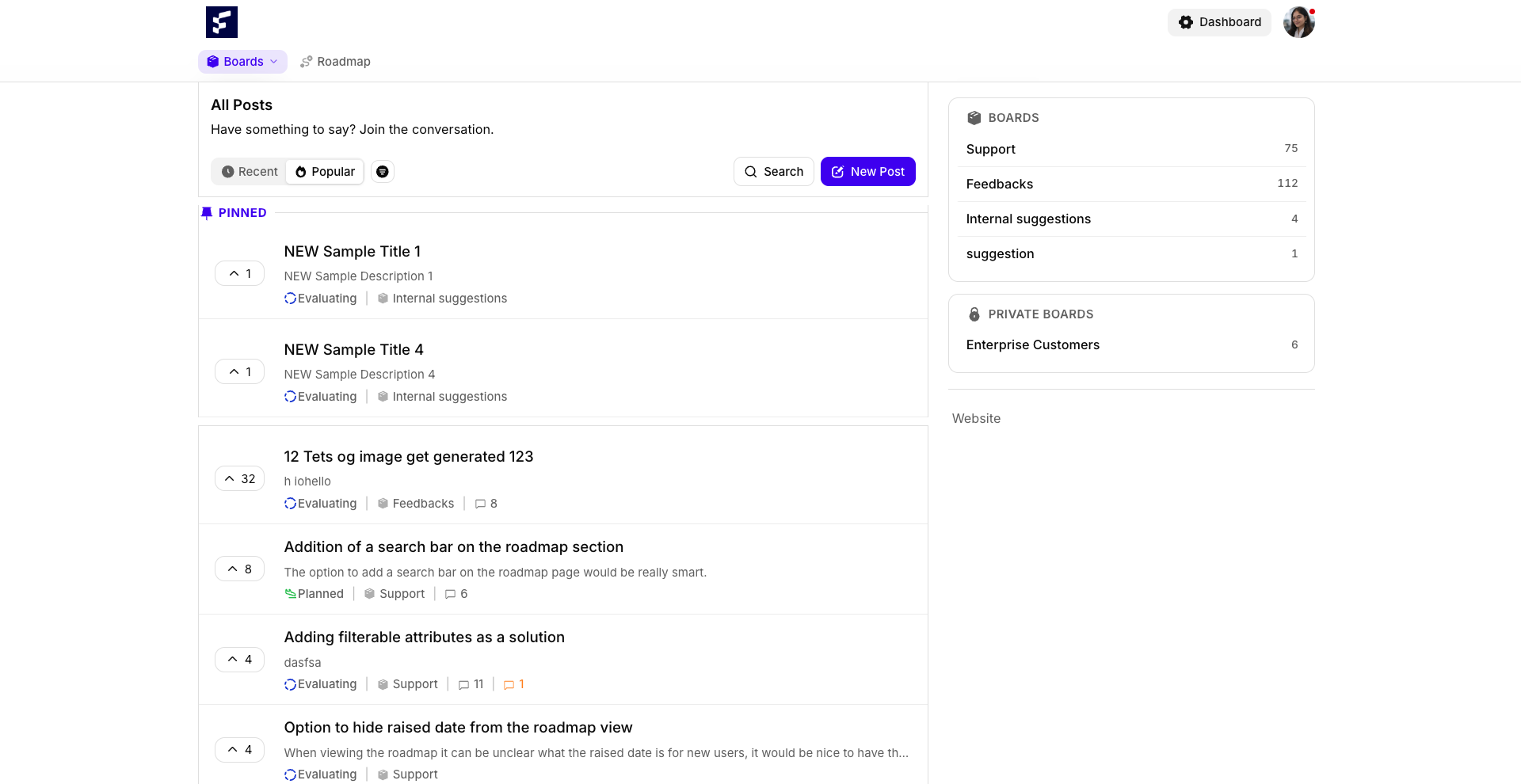
Your team members, however, retain complete visibility across all posts so they can triage, respond, and manage requests without disruption.
This is especially valuable for:
Customer support and helpdesk boards where tickets may contain sensitive or account-specific information.
Enterprise or B2B feedback portals where customers should not see each other's requests.
Internal product teams that want to expose a feedback channel without surfacing confidential business feedback publicly.
How to Enable Support Board Mode
Follow the steps below to activate Support Board mode on any of your boards.
Step 1 : Head to Dashboard and open Board section, navigate to the board you want to configure. In the top navigation of the board, click Settings.
Step 2 : Scroll to Advanced Settings within the Settings tab.
Step 3 : Enable the Support Board Toggle.
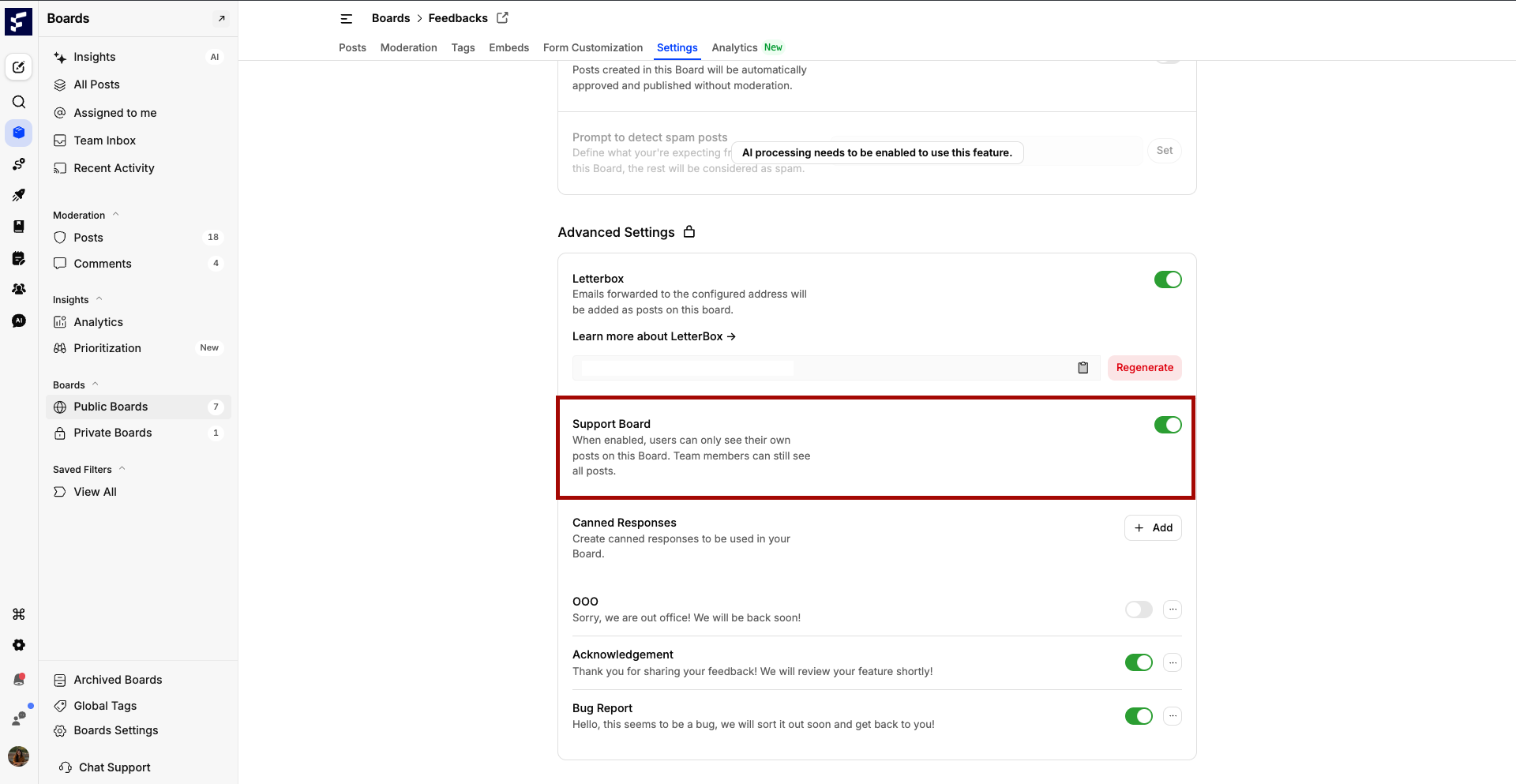
💡 Note: The toggle is off by default for all newly created boards. You must explicitly enable it per board.
Quick Note :
This feature is applicable for both private and public boards, meaning you can make either of them as your support board.
For private board, make sure you add customers, who you want to be part of that specific board, to do that you can navigate to Dashboard→ Boards → Navigate to your desired private Board → Click on Members in top navigation bar → Add Member.
Moderation of posts and comments applies for Support Board.
What Changes After Enabling Support Board
Once the Support Board toggle is on, the following behaviour applies:
Who | What they can see | What they cannot see |
|---|---|---|
End Users / Customers | Only their own submitted posts | Posts submitted by other users |
Team Members | All posts across the board | Full visibility is retained |
From Team Member’s POV :
From User / Customer POV :
Need more help?
Reach out to our support at [email protected] or submit a request on our support board! 😃
Frequently Asked Questions
Was this helpful?