

As your team scales, it’s important to clearly define roles within your FeatureOS organization. Assigning a title to your team members not only helps with internal organization but also adds a layer of professional context when they interact with customers on your feedback boards or changelogs.
How to update a team member's title
Updating a role takes just a few clicks from your administration dashboard:
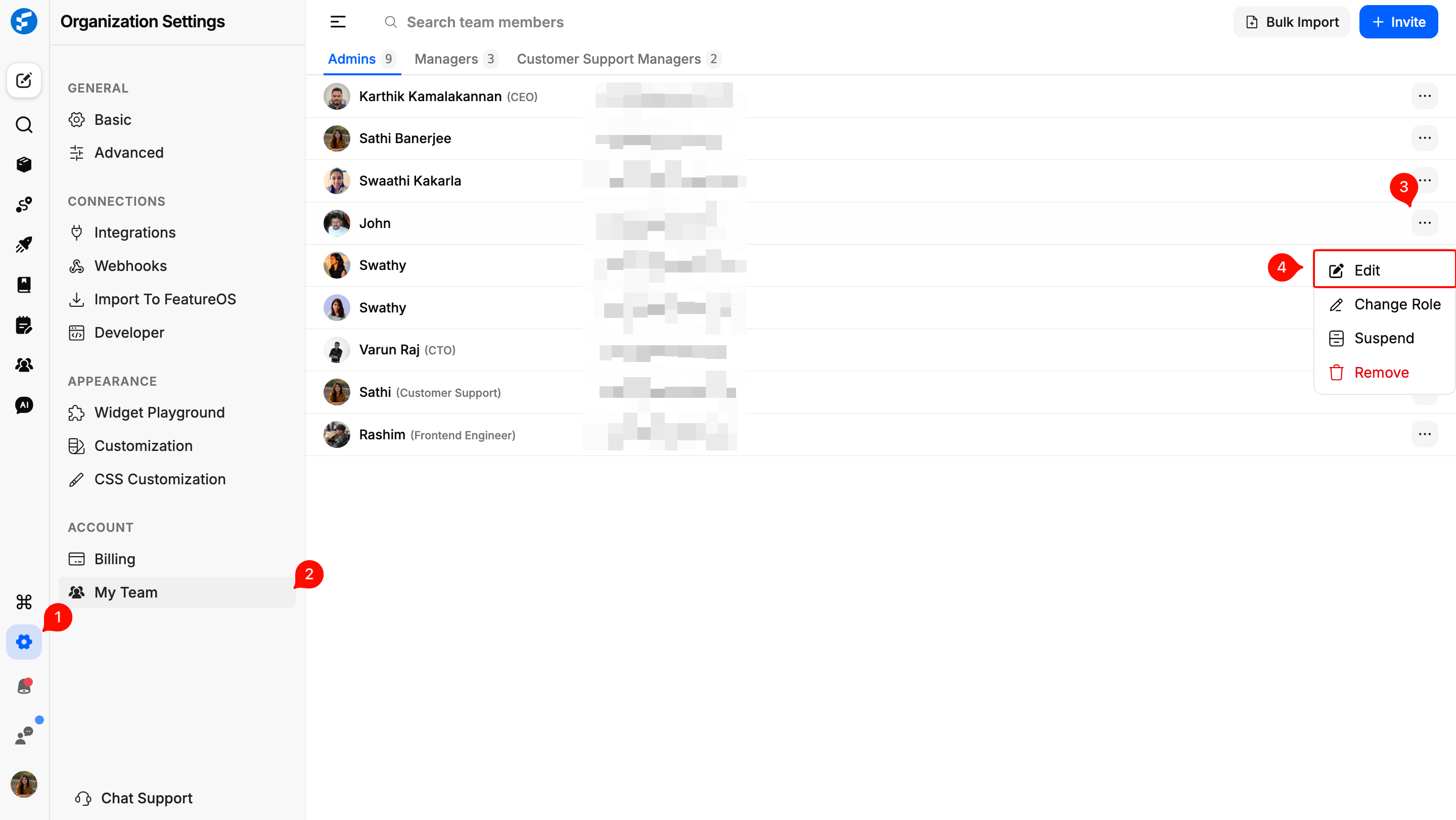
From your main Dashboard, click on Organization Settings in the left-hand navigation menu.
Select the My Team tab to see a full list of your current members and contributors.
Locate the team member you wish to update. Click on the three-dot menu (⋮) on the far right of their profile row.
Select Edit Profile from the dropdown options.
In the Title field, enter the team member's professional role (e.g., Product Growth Manager or Customer Success Lead).
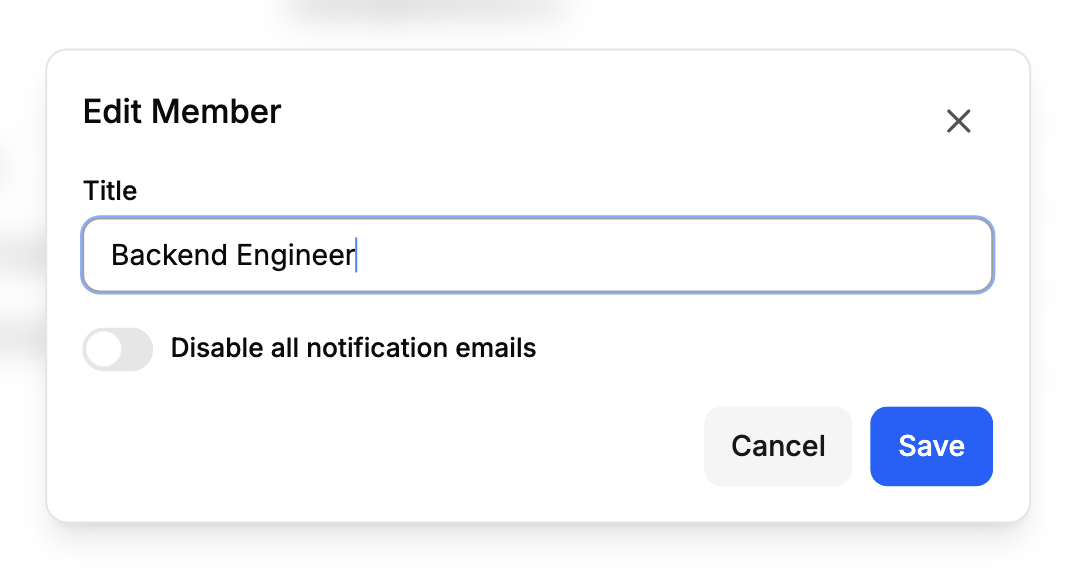
Click the Save button to apply the update.
Why assigning titles matters
Internal Clarity: Helps new team members quickly identify who is responsible for specific product areas or modules.
Customer Trust: When a team member responds to a customer’s post, having a title like "Product Manager" attached to their name provides immediate authority and reassurance to the user.
Streamlined Communication: Clear roles prevent overlapping responsibilities and ensure that the right person is handling the right feedback.
Need more help?
Reach out to our support at [email protected] or submit a request on our support board! 😃
Was this helpful?