

If you are moving your documentation from Help Scout to FeatureOS, you can use our native importer to migrate your articles automatically. This ensures your help content is centralized and easy for your customers to find alongside your product feedback.
Connect your Help Scout Account
Before you can run an import, you must first authorize FeatureOS to access your Help Scout data.
Log in to your FeatureOS Admin Dashboard.
Navigate to Organization Settings (bottom left sidebar) and select the Integrations tab.
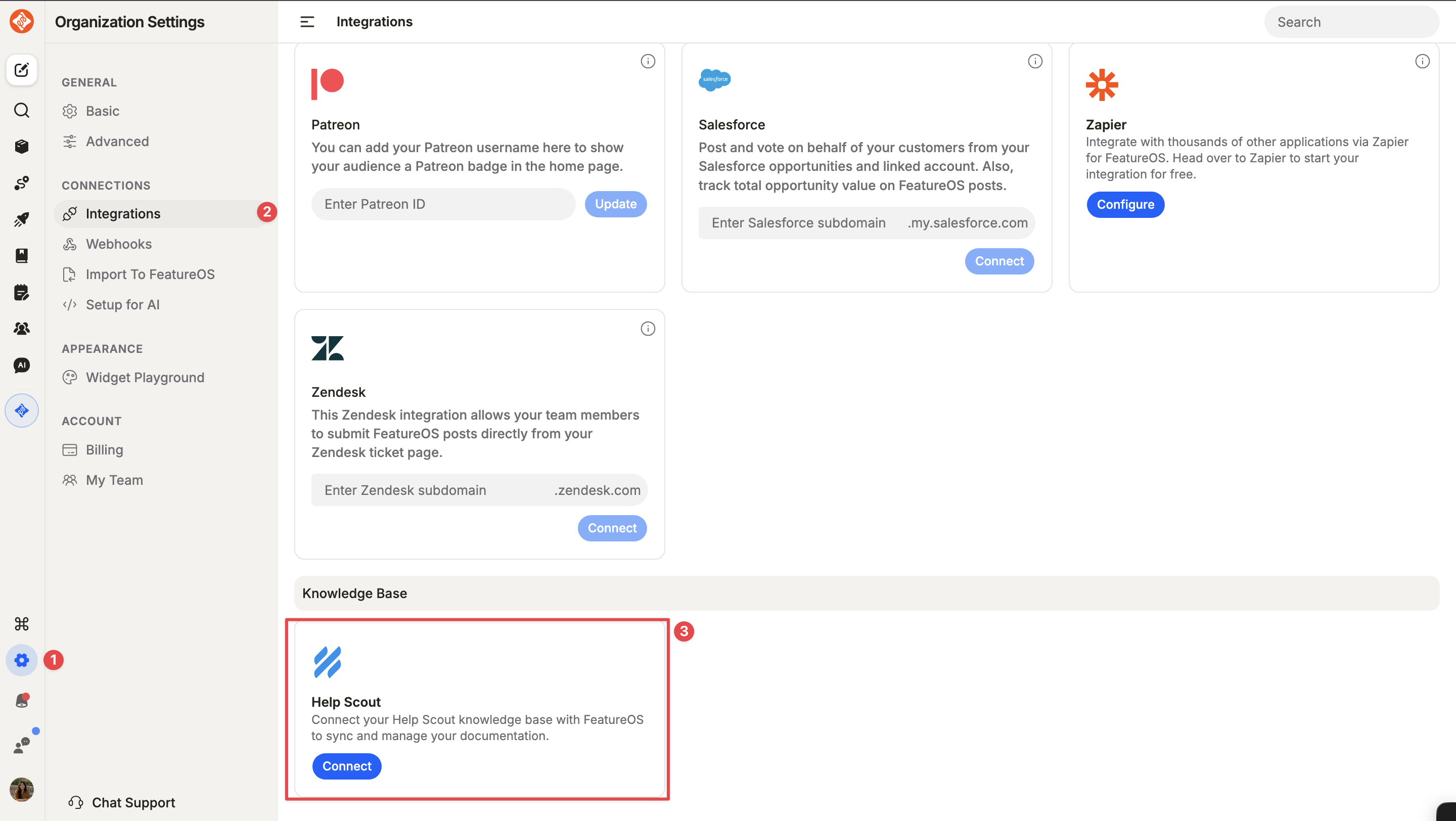
Scroll down to Help Scout under Knowledge Base section in Integrations in the list of available integrations and click Connect.
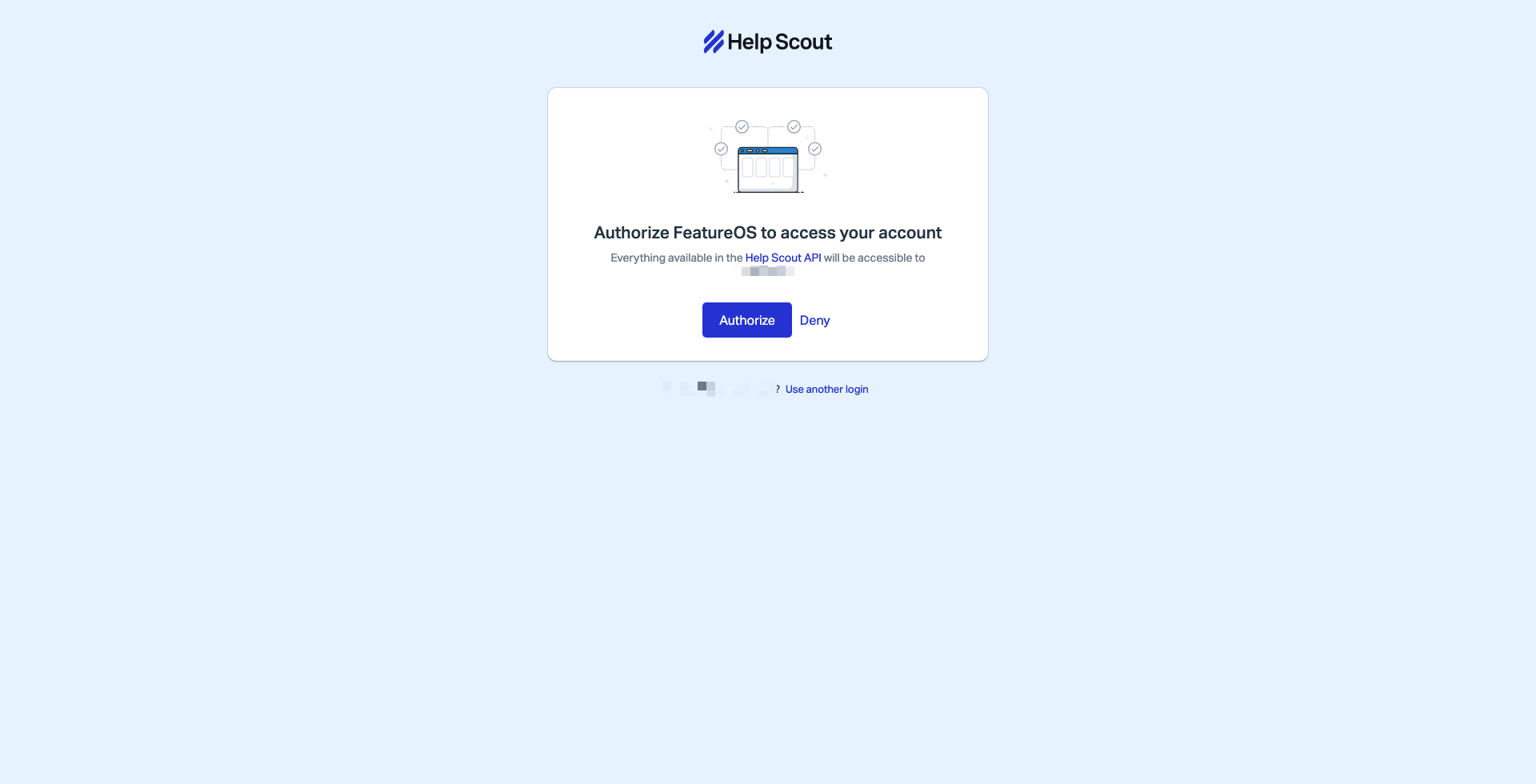
You will be redirected to Help Scout. Log in (if prompted) and click Authorize to allow FeatureOS to access your account.
Once authorized, you will be redirected back to FeatureOS, and the status will show as Connected.
How to migrate your Help Scout Knowledge Base
1. Access the Importer
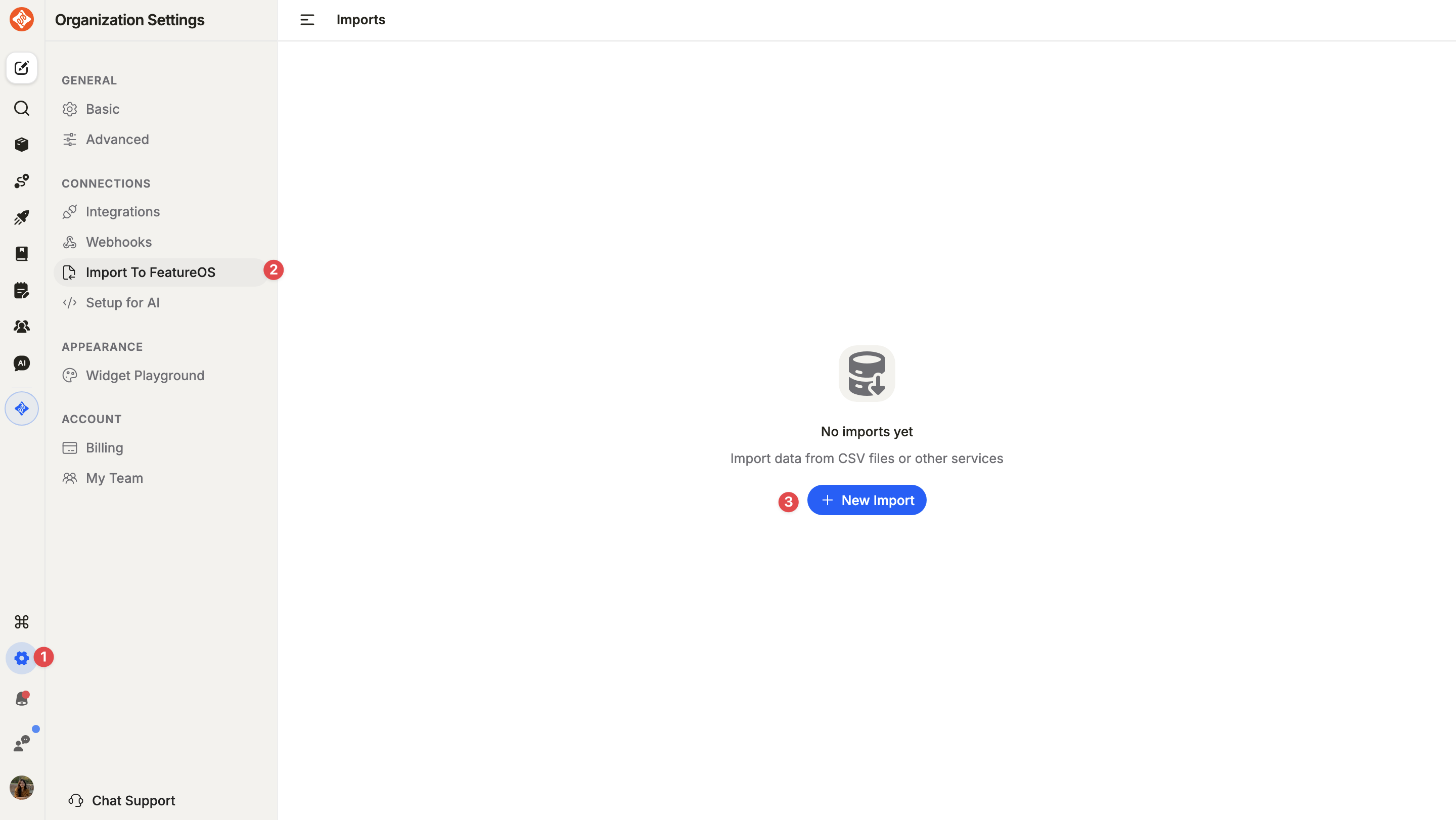
Click on Organization Settings at the bottom of the left-hand sidebar.
Select the Import to FeatureOS tab.
Click the + New Import button in the top-right corner.
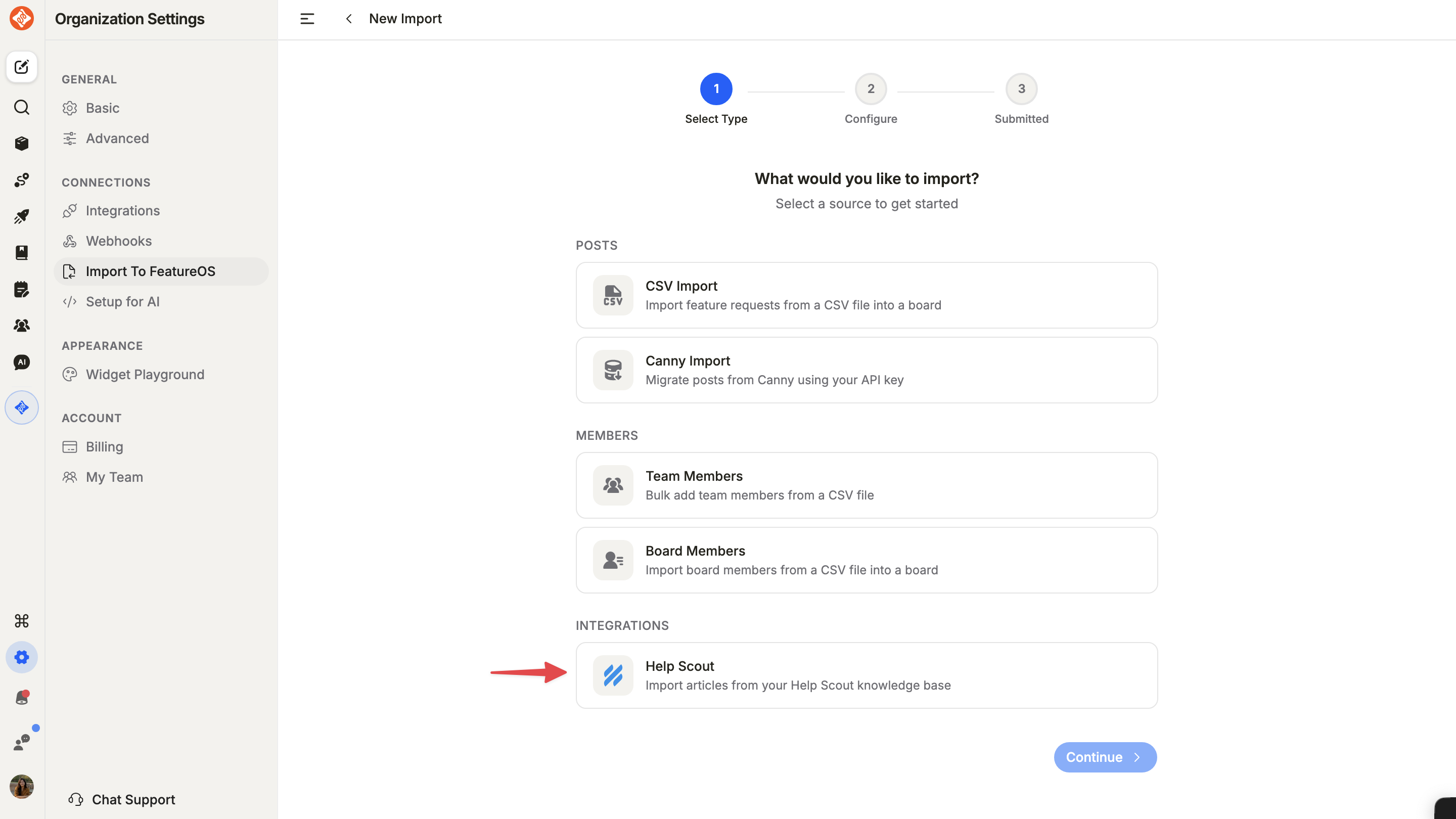
On the Select Type screen, scroll down to the Integrations section. Click on the Help Scout card (noted for importing articles from your Help Scout knowledge base) and click Next.
2. Configure the Migration
To establish a secure connection and define how your content appears, fill in the following details:
Help Scout API Key: Enter your Docs API Key. You can generate this in your Help Scout account under Your Profile → Authentication → API Keys.
Locale: Select the primary language for your articles (e.g., English). This ensures the metadata in FeatureOS matches your content.
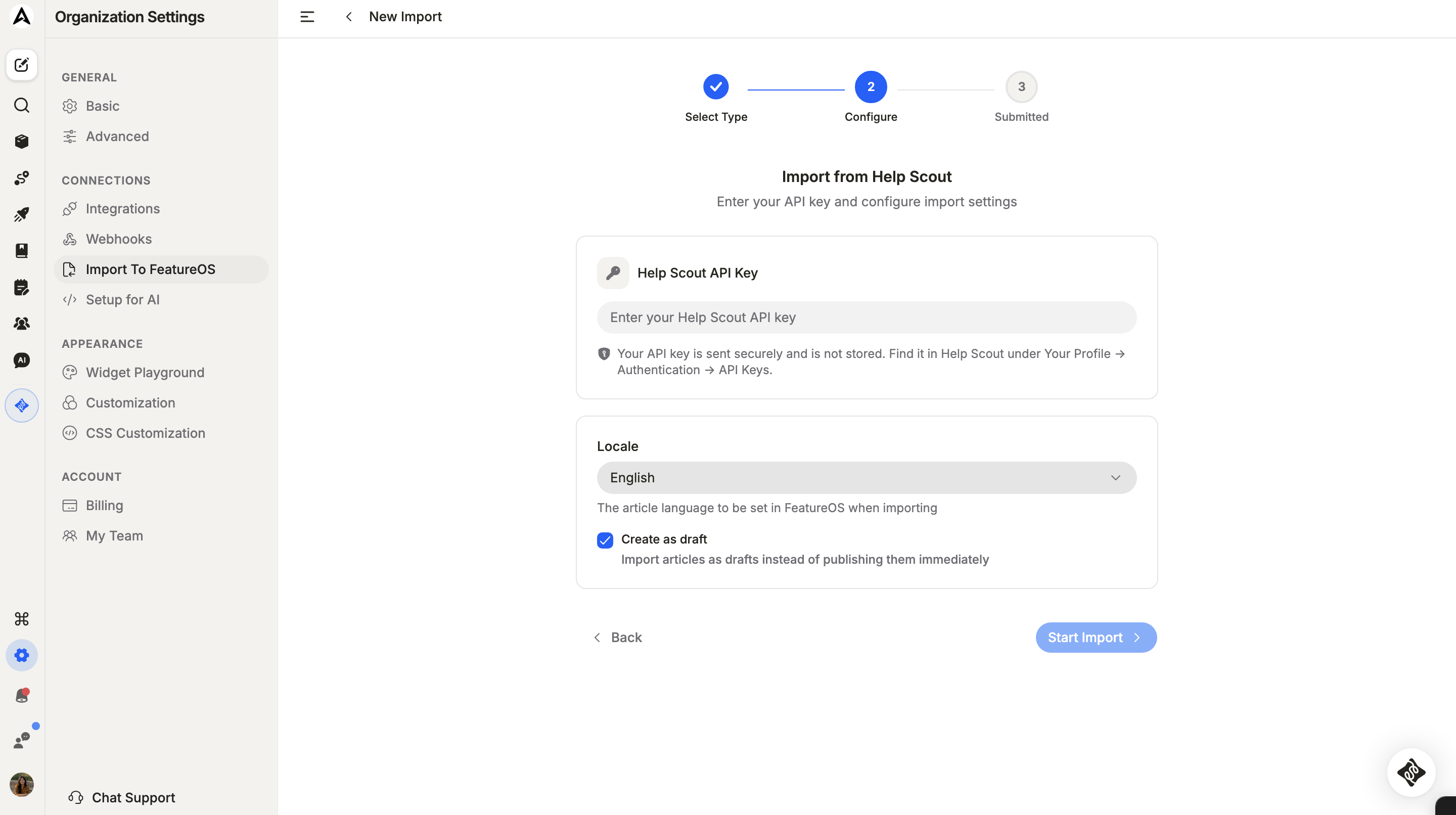
Click Start Import. Your import will be submitted and processed in the background. You don't need to stay on the page, FeatureOS will send you an email notification as soon as the process is complete.
Post-Import Steps
Once the import is finished, you can find your content under the Knowledge Base module in the left sidebar. We recommend a quick health check on the following:
Track Import Status: You can monitor the progress and results of your migration directly from the Import to FeatureOS list. Clicking on a specific import will show a summary of the Total articles processed, how many were successfully Imported, and if any were Skipped.
Article Review: If you imported as a draft, open a few articles to ensure the formatting (headers, bolding, etc.) migrated correctly.
Category Organization: Ensure your articles are grouped into the correct Collections and Categories within FeatureOS.
Need more help?
Reach out to our support at [email protected] or submit a request on our support board! 😃
Was this helpful?