

In FeatureOS, managing team permissions just got a whole lot more granular. While default roles like Admin, Manager, and CSM provide a great foundation, your organization might need roles that don't fit into a standard box, like a "Product Lead" who only manages specific boards or a "Moderator" who only handles comments.
With Custom Roles, you can mix and match permissions to ensure every team member has exactly the access they need.
This feature is included in our Growth & Business Plans. Role Configuration
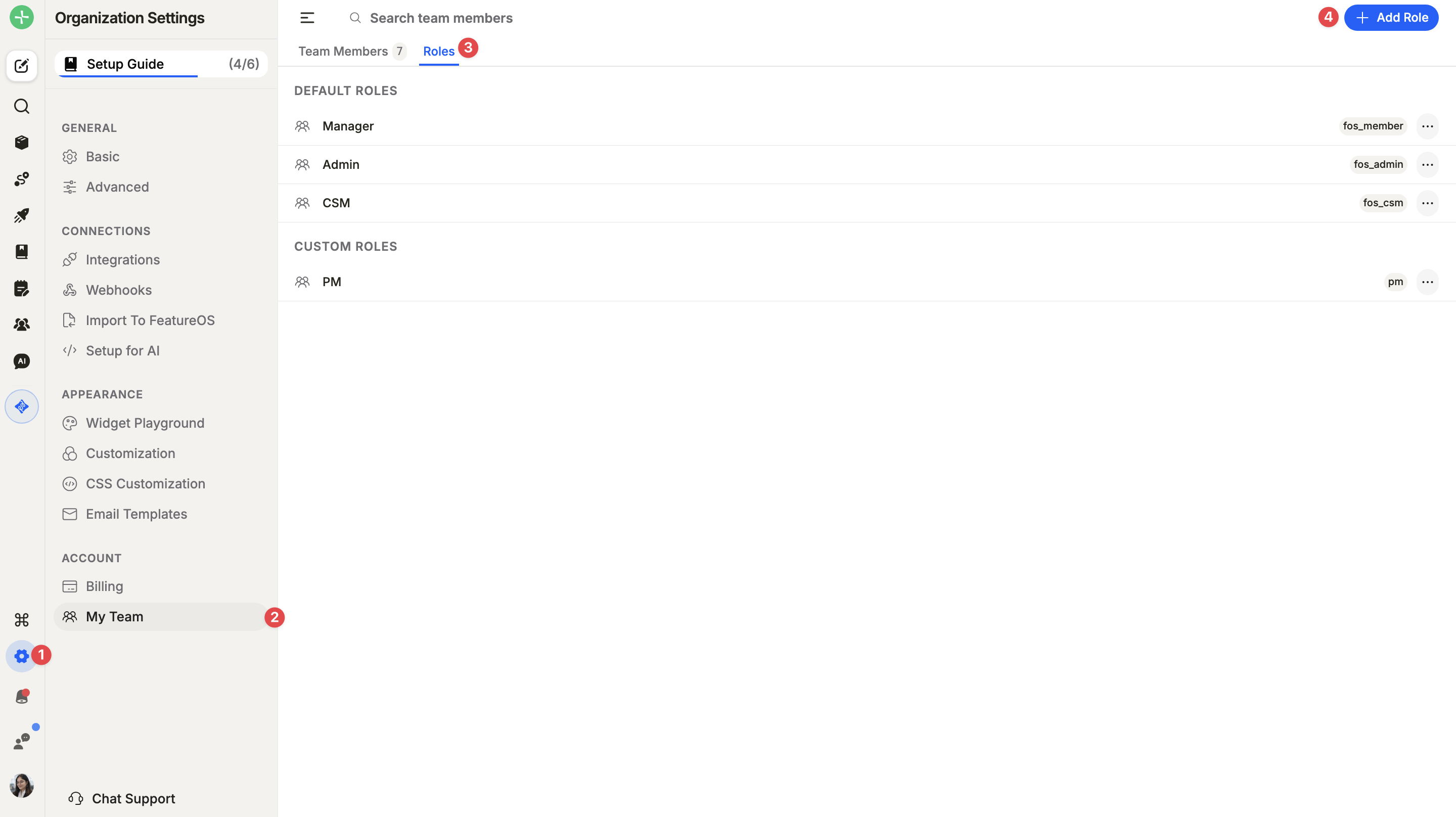
To create a role, navigate to Organization Settings > My Team > Roles and select + Add Role.
Name: The administrative title for the role (e.g., Support Lead).
Slug: A unique identifier used for system references (e.g.,
support_lead).Board Access: Toggle All boards to grant universal access, or disable it to manually select specific boards( including both public and private boards) that the role can interact with.
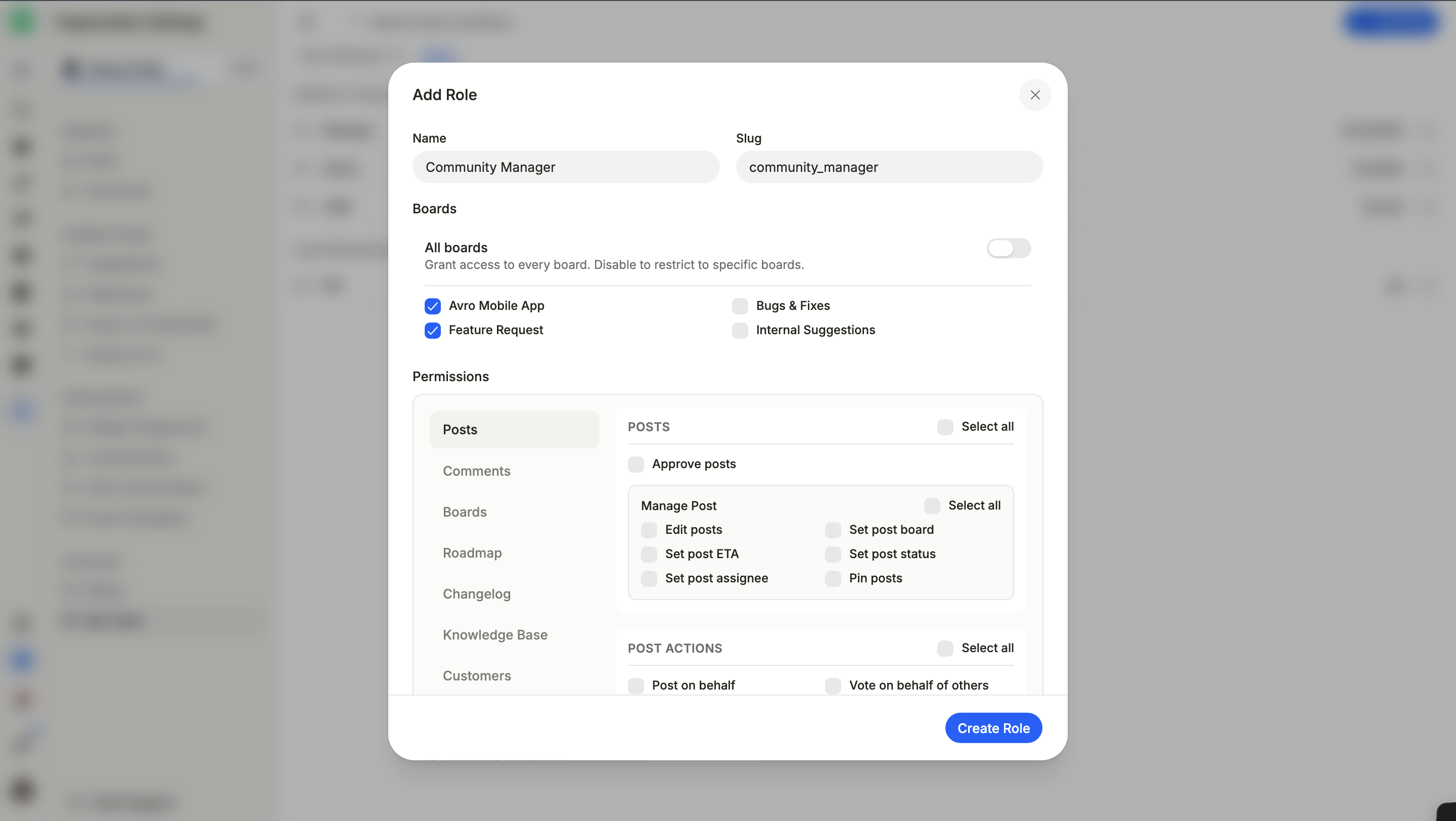
Permission Modules
1. Posts
Define the level of access the specific custom role have to manage posts and their progression.
Posts & Management
Approve posts: Allows moving posts from moderation to an approved state.
Edit posts: Grants the ability to modify post titles and descriptions.
Set post ETA: Enables assigning or updating completion dates.
Set post assignee: Allows assigning specific team members to a post.
Set post board: Gives permission to move posts between different boards.
Set post status: Allows updating workflow stages (e.g., "Under Review").
Pin posts: Enables sticking important items to the top of a board.
Post Actions
Post on behalf: Allows submitting feedback using a customer's identity.
Merge posts: Grants the ability to combine duplicate feedback entries.
Push to integrated applications: Enables sending data to tools like Jira or Slack.
Export posts: Allows downloading post data in CSV format.
Manage tags: Gives the right to create or remove organizational tags.
Vote on behalf of others: Allows adding votes for customers.
Hide / unhide posts: Removes posts from public view without deletion.
Import posts: Grants permission to bulk-upload post data.
Reset votes: Allows clearing all existing votes on a specific post.
Delete posts: Provides high-level permission to permanently remove data.
2. Comments
Manage how team members participate in and moderate discussions.
View/Manage private comments: Control over internal-only team discussions.
Manage/Moderate comments: Broad rights to edit, remove, or approve public comments.
Auto-approve post comments : Comments on posts from this role publish without moderation.
Auto-approve article comments : Comments on KB articles from this role publish without moderation.
Auto-approve changelog comments : Comments on changelog entries from this role publish without moderation.
3. Boards
Manage the creation, customization, and visibility of boards.
Create public/private board: Authority to build new feedback channels.
Customize submission form: Ability to modify fields and layouts for new posts.
Manage settings & members: Rights to adjust board configurations and access.
Manage custom fields: Ability to create unique data points for post categorization.
4. Roadmap
Management of product strategy and timelines.
Show roadmap module: Primary visibility toggle for the roadmap tab.
Manage roadmap settings: Authority to configure column headers and visibility.
Edit roadmap: Permission to add, remove, or reorganize posts on the roadmap.
5. Additional Modules
Changelog: Controls the ability to view the product's release history.
Knowledge Base: Manages access to internal documentation and help articles.
Customers: Access to the CRM to view profiles and customer feedback history.
Workspace: Grants access to platform tools like AI Chat and Form Management.
Admin: High-level rights to Import/Manage team members, view Organization Settings, and access the Recent Activity audit log.
Role Management & Maintenance
Once a role is created, it is listed under the Custom Roles section of the Roles under Organization Settings → My Team → Custom Roles. You can manage existing roles by clicking the three-dot menu (...) located on the far right of the role entry.
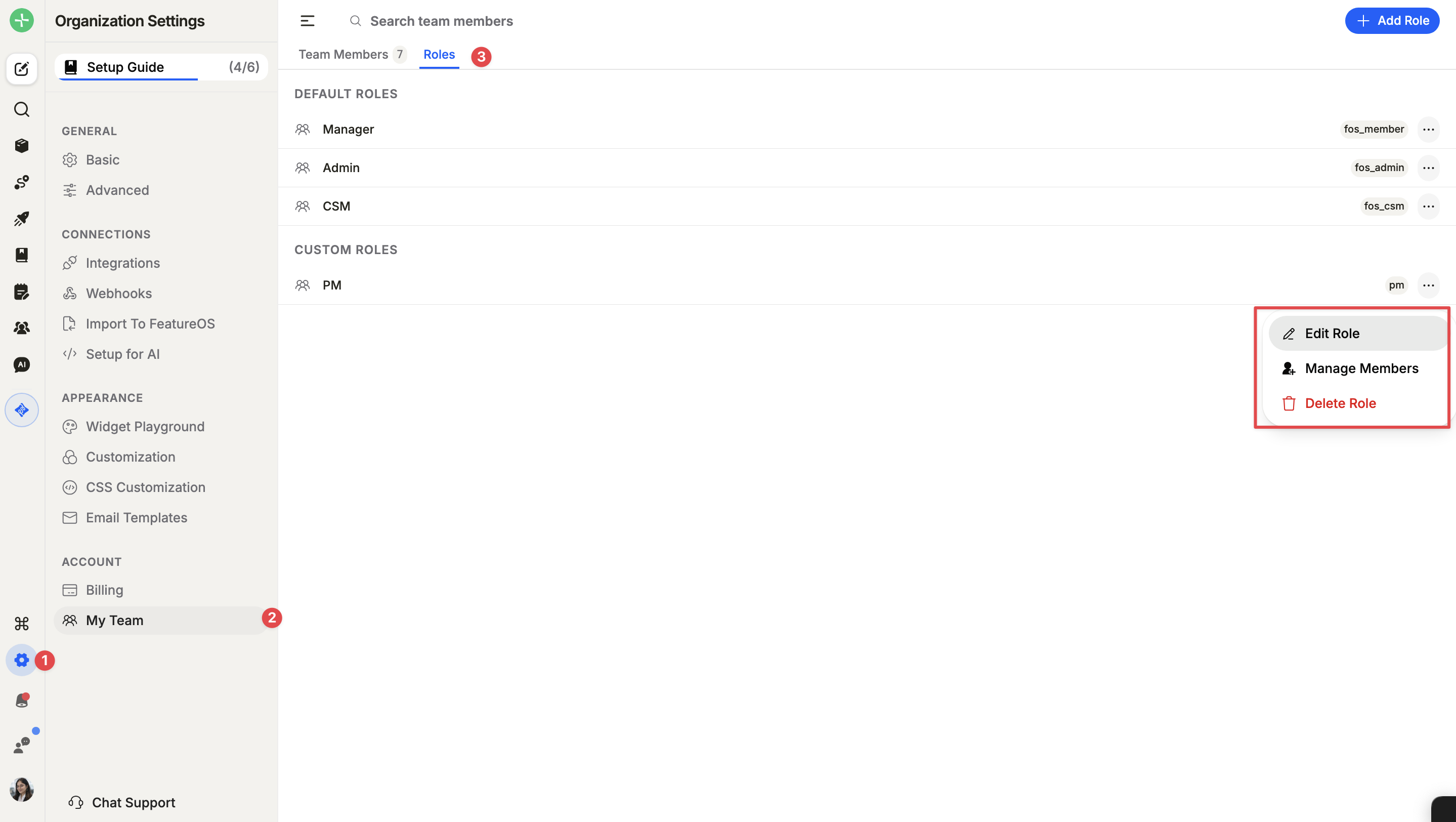
1. Edit Role
To update the permissions or name of an existing role:
Click the three-dot menu (...) next to the role name.
Select Edit Role from the dropdown menu.
This opens the permission matrix where you can add or remove capabilities.
Click Update Role to save your changes.
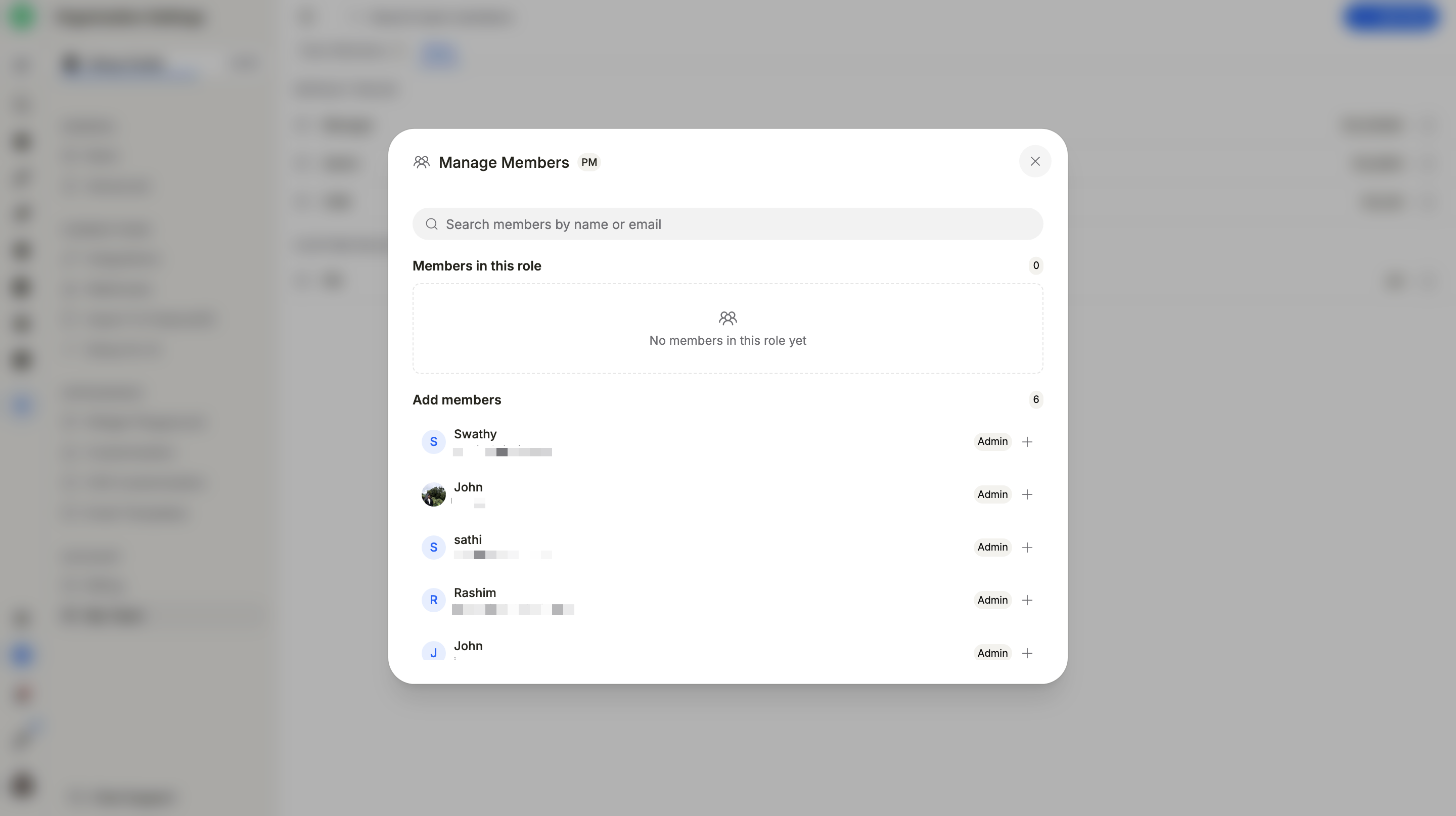
2. Manage Members
To assign or remove team members from a specific role:
Click the three-dot menu (...) next to the role name.
Select Manage Members.
In the resulting list, you can see all users currently assigned to the role. Use the interface to add new members or revoke access for existing ones.
3. Delete Role
To permanently remove a custom role that is no longer needed:
Click the three-dot menu (...) next to the role name.
Select Delete Role.
Confirm the deletion in the popup warning. Note that you will need to reassign users to a different role before a custom role can be fully deleted.
Need more help?
Reach out to our support at [email protected] or submit a request on our support board! 😃
Was this helpful?